 Noteic
Handwriting to text
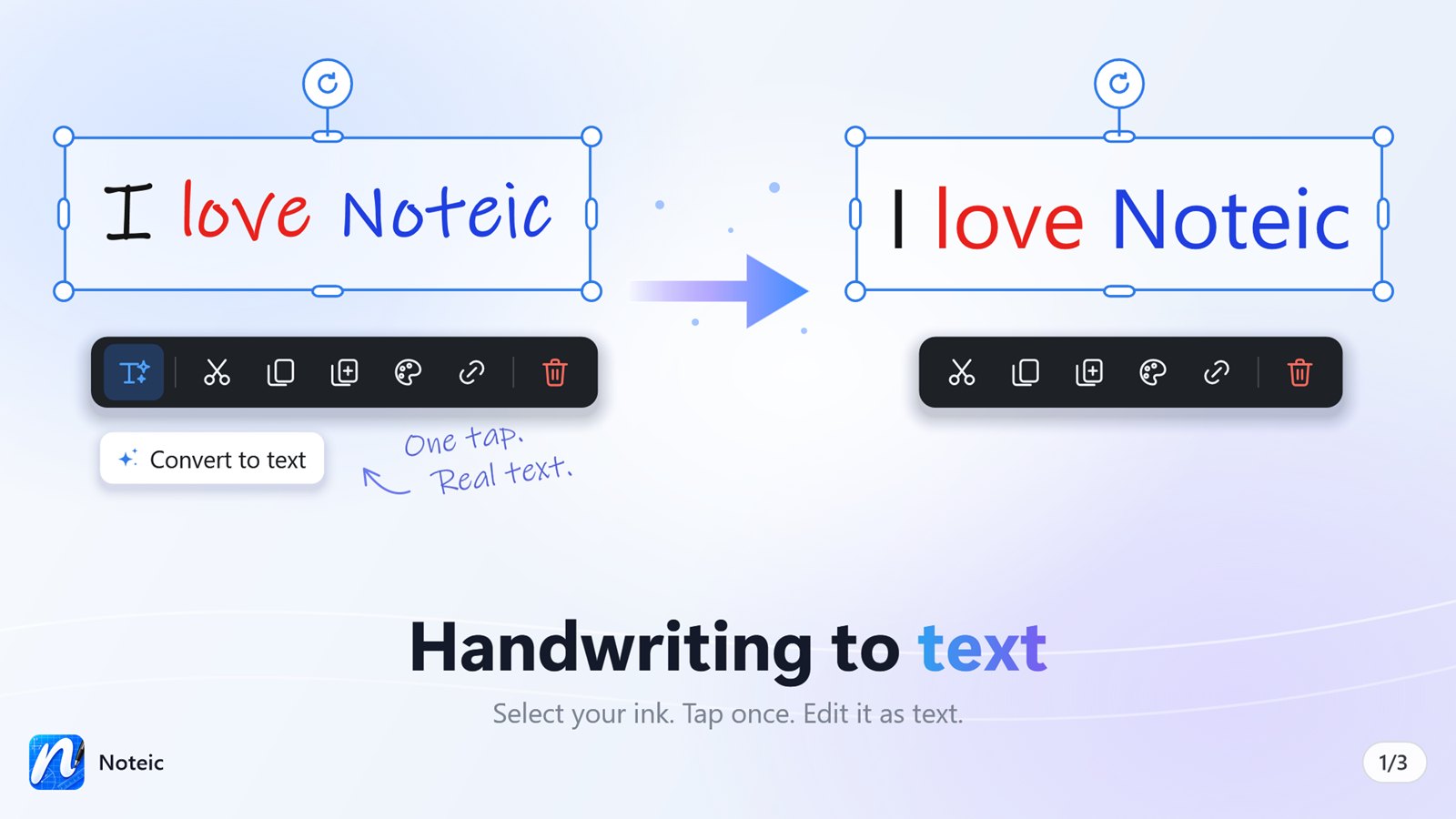
Select your handwriting and tap once: Noteic turns it into a text box you can edit, right where you wrote.
Before you start#
Noteic uses the handwriting recognition built into Windows. It runs on your device and works offline. Add handwriting for your language once:
- Open Windows Settings › Time & language › Language & region.
- Next to your language, select … › Language options.
- Under Handwriting, install handwriting if Windows offers a download.
If no recognition is installed, Noteic says so: “No handwriting recognition — see Windows Settings › Time & language”.
Convert#
- Select your handwriting with the lasso.
- Tap Convert to text in the selection bar.
- Your ink is replaced by one text box in the same place, with one line per line you wrote.
- The text gets your default text box font, a size that matches your writing, and your ink color. Words in another color keep their color.
- Slanted writing is recognized too.
- Changed your mind? Ctrl+Z brings your handwriting back.
Correct a word#
Right after converting, while the new text box is still selected, tap a word. A small bar shows your original ink for that word, up to four suggestions and Edit text.
Search and pen input use it too New in 1.7#
The same Windows handwriting recognition does two more things, also on your device and offline:
- Search: you don't have to convert handwriting to find it. Press Ctrl+F in a note, or use Search in the library. Noteic reads your ink for the search and leaves it as ink. See Search your notes.
- Write into fields: tap a text box you are editing or a search field with your pen. A small handwriting field opens, and Noteic turns what you write there into typed text. See Write with your pen.