 Noteic
Ruler and protractor
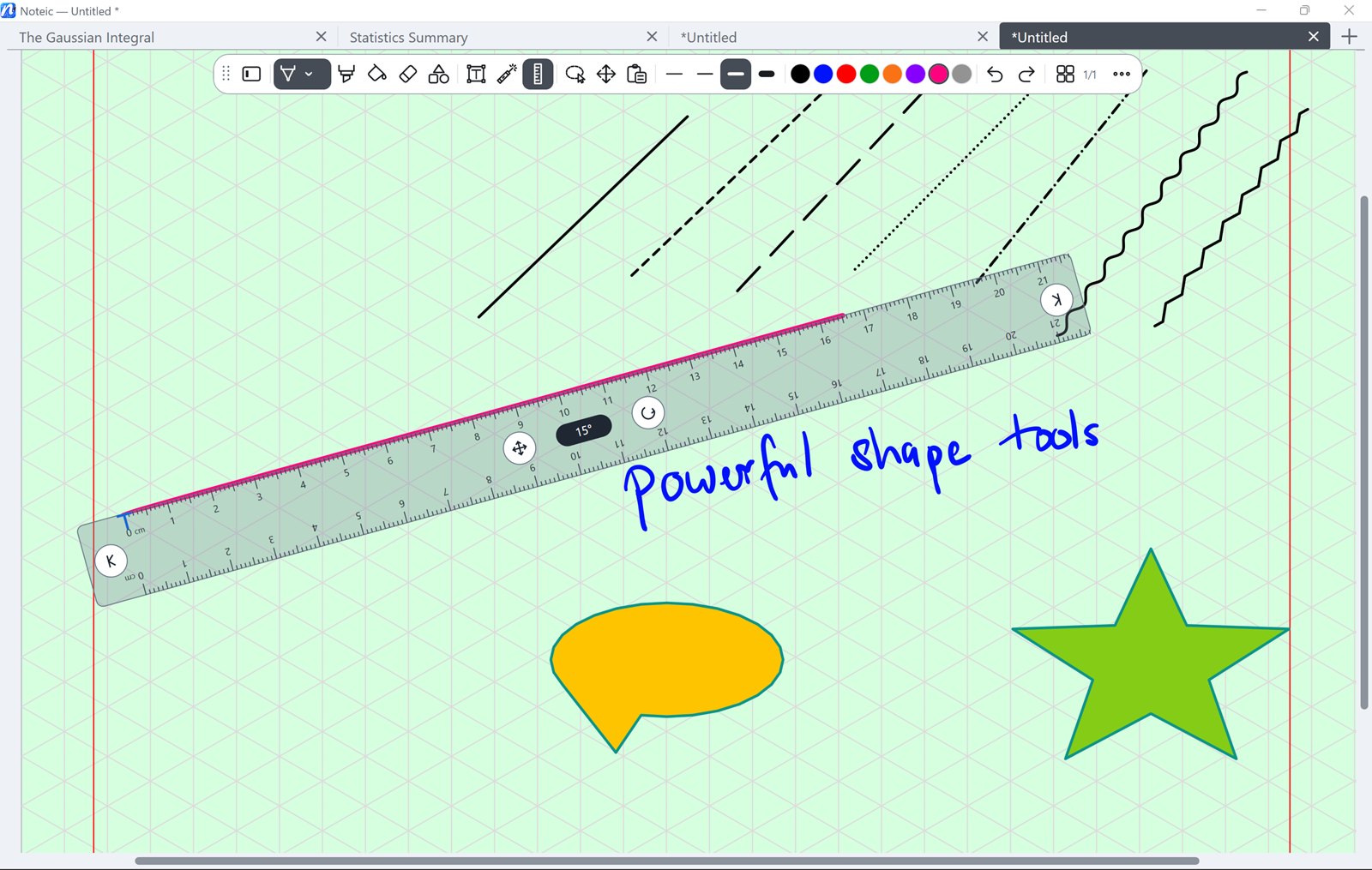
Draw straight lines at any angle along the ruler, and measure and draw angles with the protractor.
Show the ruler or protractor#
- Tap Ruler in the toolbar, or press Ctrl+L. Tap again to hide it.
- Press and hold the button to open its menu. Tap Ruler or Protractor and it appears right away. Only one is shown at a time.
Ruler#
- Draw: with the pen or highlighter tool, draw along the ruler's long edge. The line follows the edge exactly, with pen pressure.
- Move: drag the ruler with a finger, or use the cross in the middle.
- Turn: drag the round arrow. The angle shows in the middle of the ruler.
- Length: drag the arrows at both ends.
The scale shows real sizes at the current zoom, in centimeters or inches.
Units#
Press and hold the ruler button. Under Units, choose cm or in:
- cm: centimeters and millimeters.
- in: inches, down to 1/16 inch, with a number at every inch. Both edges of the ruler change.
The change shows at once, in every open Noteic window, and is saved. Until you choose, Noteic follows your Windows region: inches where the region does not use the metric system, centimeters everywhere else. When you zoom far out, the finest marks are left out so the scale stays readable. The protractor always measures in degrees.
Protractor#
- Draw an arc: with the pen or highlighter tool, trace along the rim. Lines from the center mark the start and the end, and the angle is shown while you draw.
- Move: drag the inner area with finger, pen or mouse.
- Size: drag the round handle with the double arrow below the center.
The protractor lies on the page: it moves and zooms with the paper. Its scale runs from 0° to 359°.