 Noteic
What's new
Noteic updates through the Microsoft Store. Here is what each version brought.
Version 1.7 Latest#
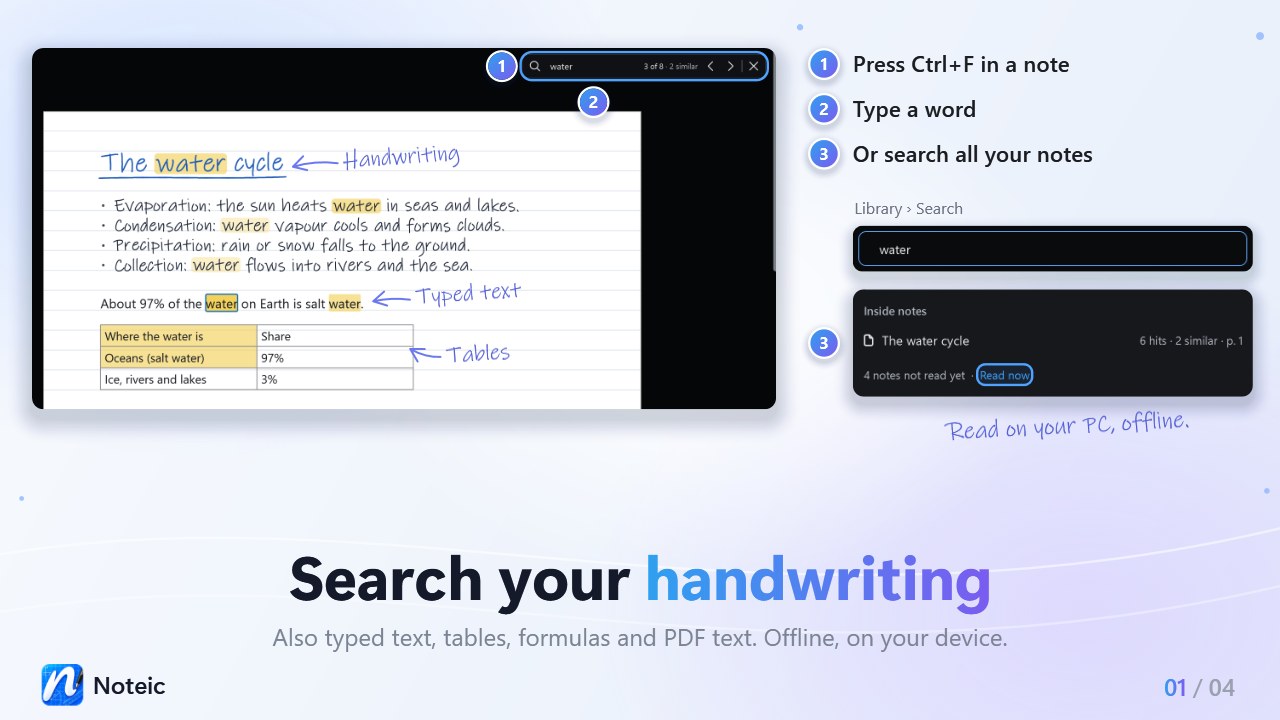
- Search your handwriting: press Ctrl+F in a note to find what you wrote by hand, and typed text, tables, formulas and PDF text. Search in the library looks inside your notes, and Read now reads the notes that were not read yet. Your handwriting is read offline on your PC, with the handwriting recognition built into Windows. You can turn this off under … › Settings › Library › Read handwriting for search (what Noteic stores).
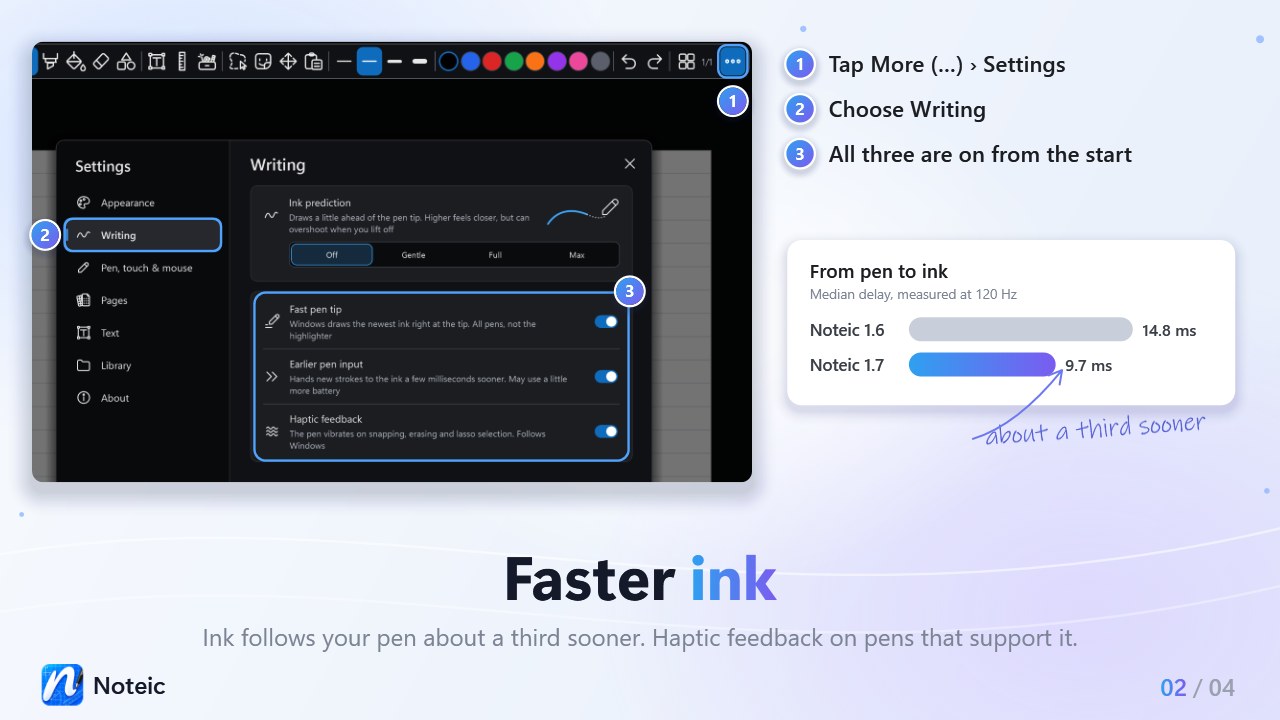
- Faster ink: Fast pen tip lets Windows draw the newest ink right at the tip of your pen (Windows 11 24H2 or later, all pens except the highlighter), and Earlier pen input hands your strokes to the ink sooner.
- Haptic feedback: on pens with haptics, the pen vibrates on snapping, erasing and lasso selection. Fast pen tip, Earlier pen input and Haptic feedback are on from the start; change them under … › Settings › Writing.
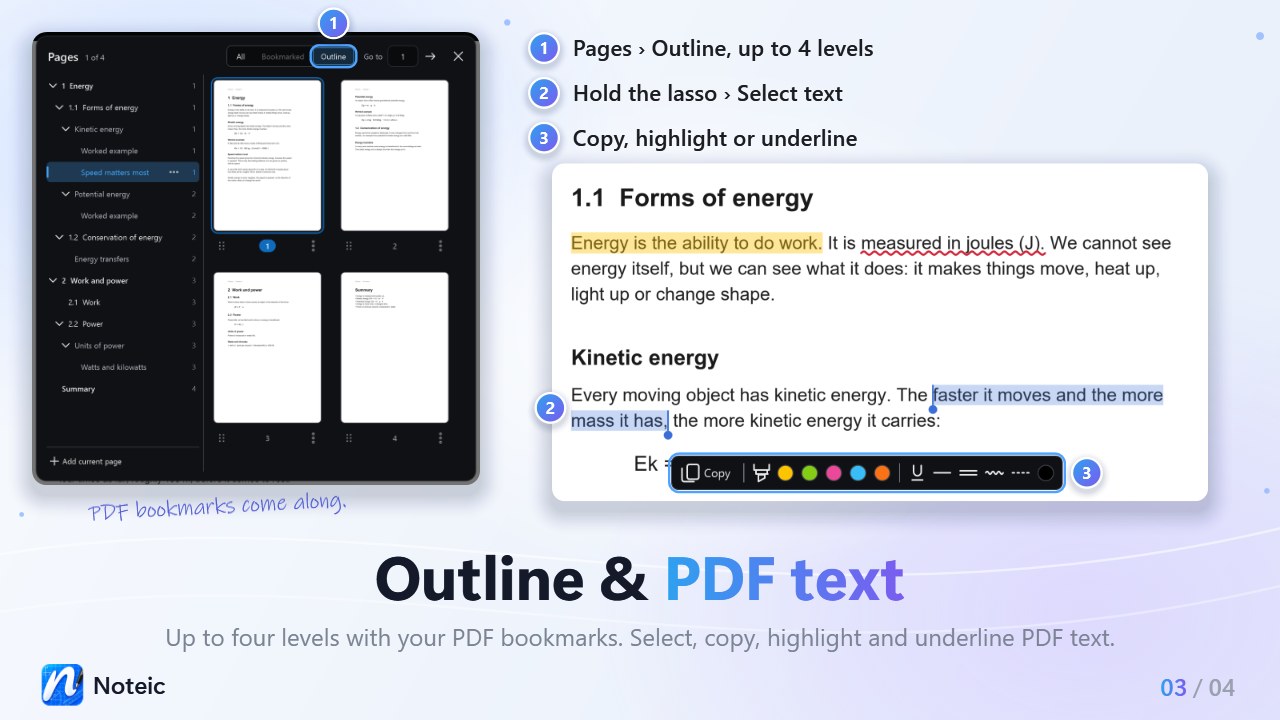
- Outline with up to 4 levels: open Pages (Ctrl+G) and choose Outline. Imported PDFs bring their bookmarks, and PDF export turns your outline into bookmarks.
- Select text in PDFs: press and hold the lasso button, choose Select text, then copy, highlight or underline it.
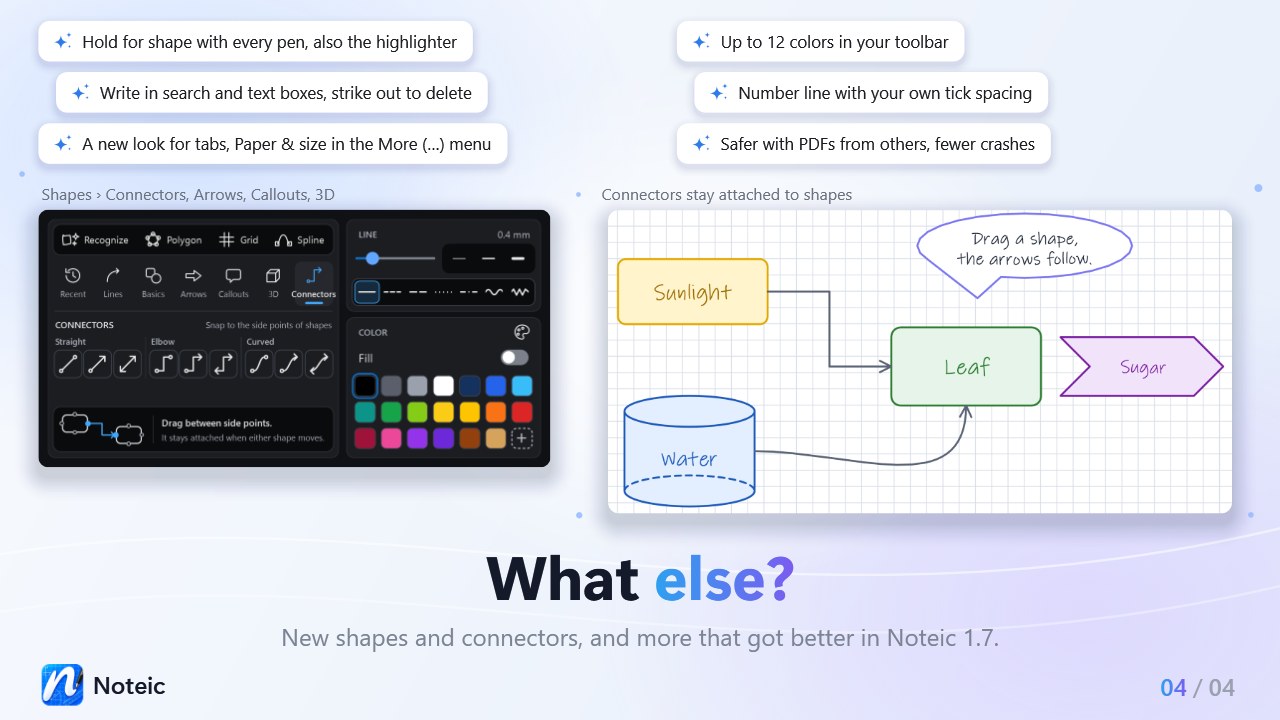
- A new shapes menu with tabs: Recent, Lines, Basics, Arrows, Callouts, 3D and Connectors, with ten new shapes, among them four 3D shapes and new block arrows.
- Connectors, straight, elbow or curved, that stay attached to shapes and follow them when you move a shape.
- Hold for shape for every pen and the highlighter: hold the pen still at the end of a stroke, and it becomes a clean shape or a straight line.
- Up to 12 colors in the toolbar: choose how many under Customize toolbar › Colors in Settings.
- Write in search boxes and text boxes: write with your pen and Noteic turns it into typed text. Strike through or scribble over words to delete them.
- A number line with your own tick spacing, from 2 to 50 mm: set it with − and + in the shapes menu, or later with Spacing under Style.
- Paper & size is right in the … menu, and What's new, r/Noteic and Contact are under … › Settings › About.
- Safer with PDFs from unknown sources: an updated PDF engine with security fixes, and Noteic skips PDF pages that made the PDF engine crash.
- More protection against rare crashes.
Version 1.6 6 November 2026#
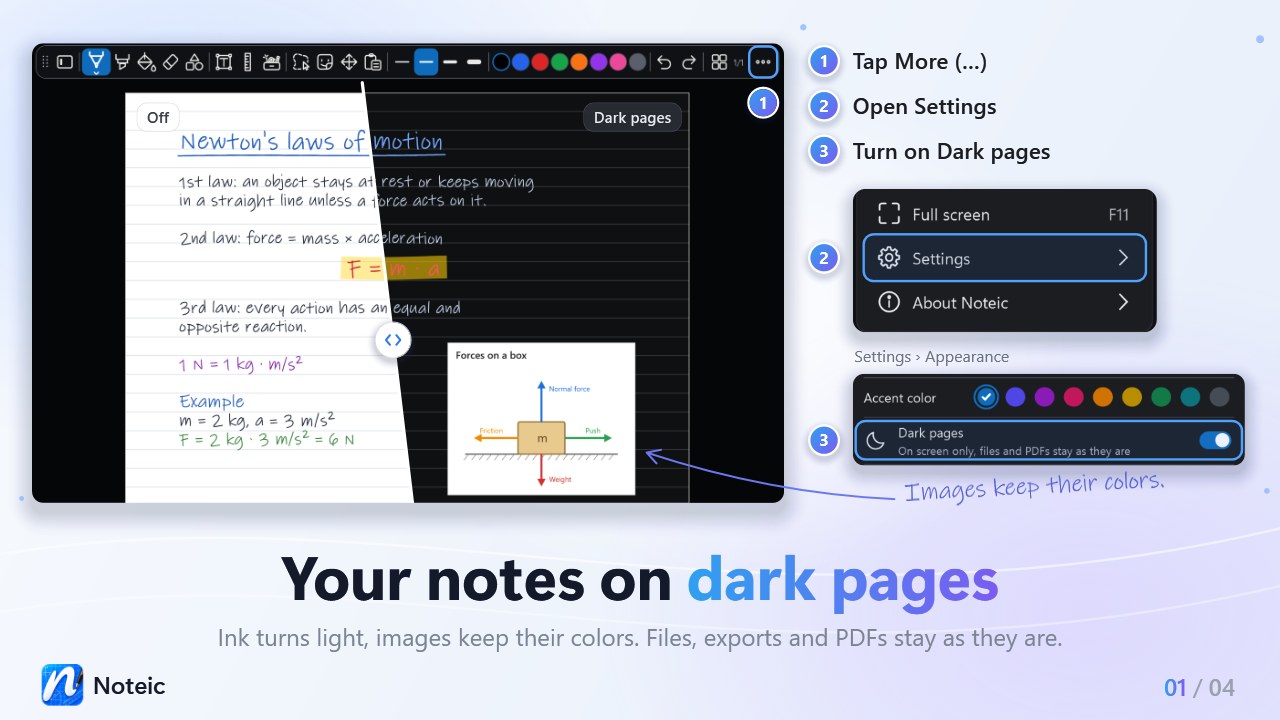
- Dark pages: show your pages dark on screen with light ink, while images keep their colors. Files, exports and PDFs stay as they are. Turn it on under … › Settings › Appearance › Dark pages.
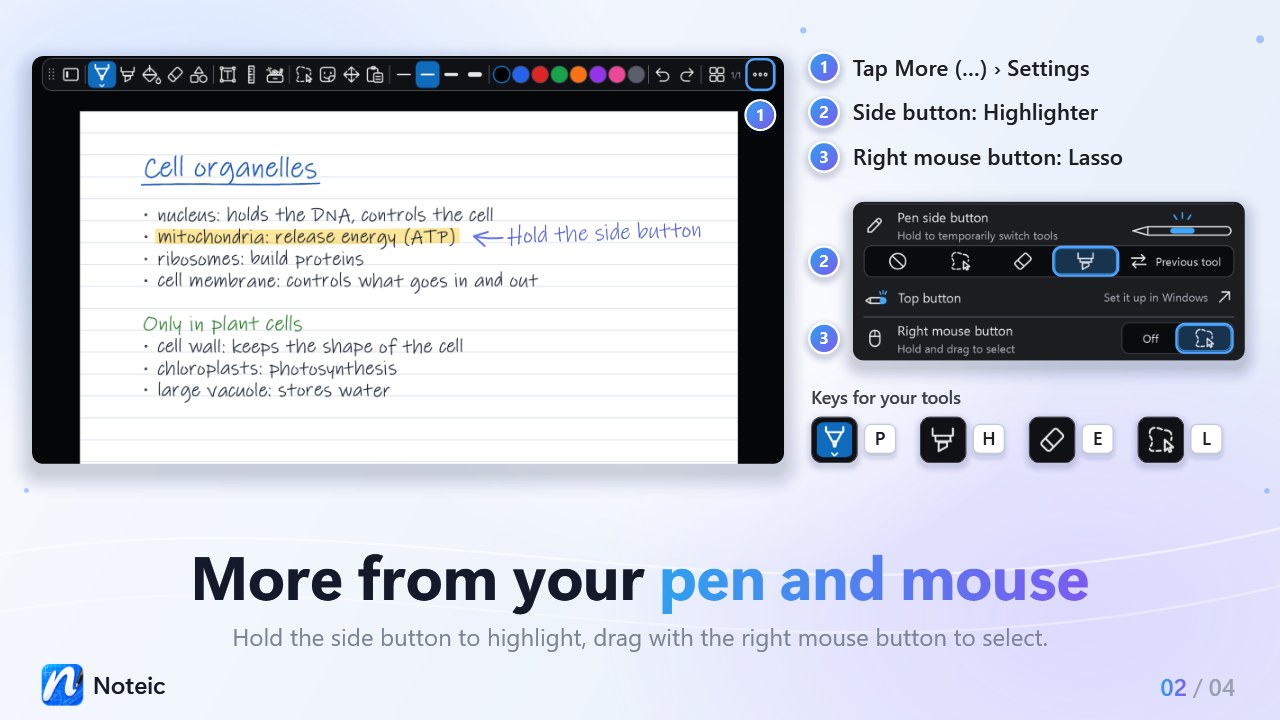
- Pen side button: hold it to highlight or to use your previous tool, besides lasso and eraser.
- Right mouse button as lasso: hold it and drag to select. Turn it on under … › Settings › Pen, touch & mouse › Right mouse button.
- Keys for tools: P pen, H highlighter, E eraser, L lasso.
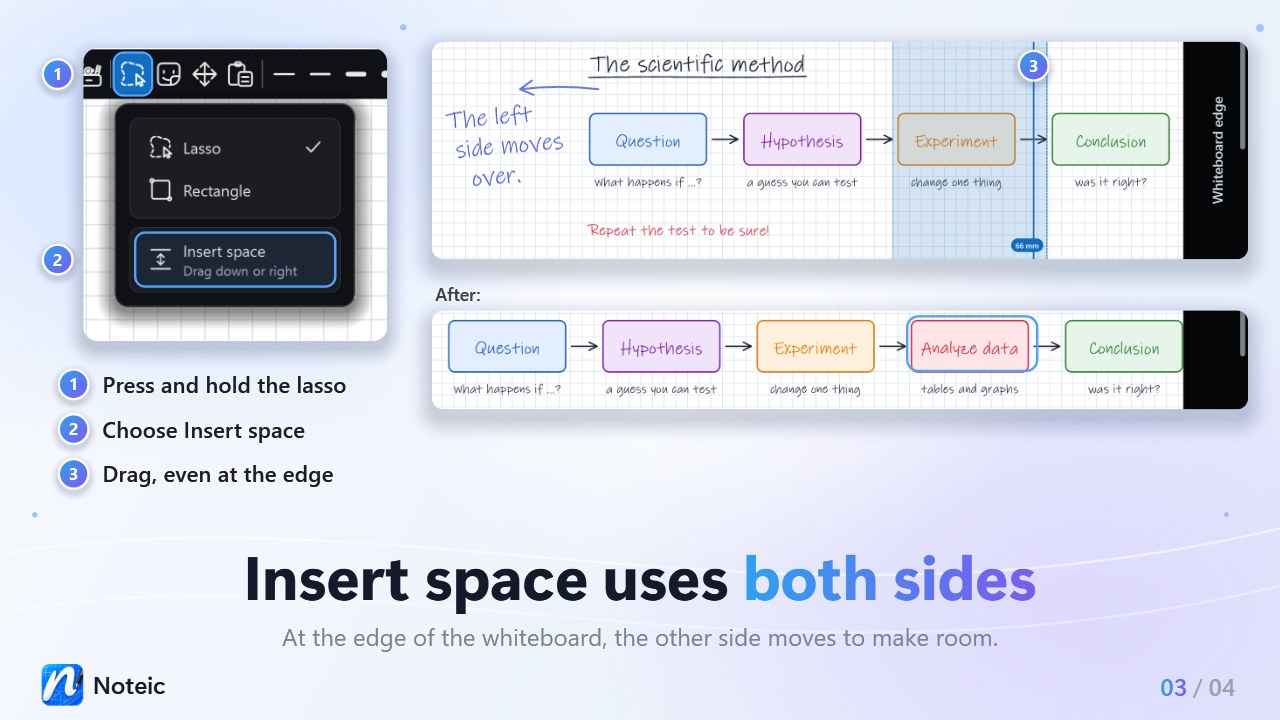
- Insert space uses both sides: when one side reaches the edge of the whiteboard, the other side moves to make room, and Noteic tells you why when it can't.
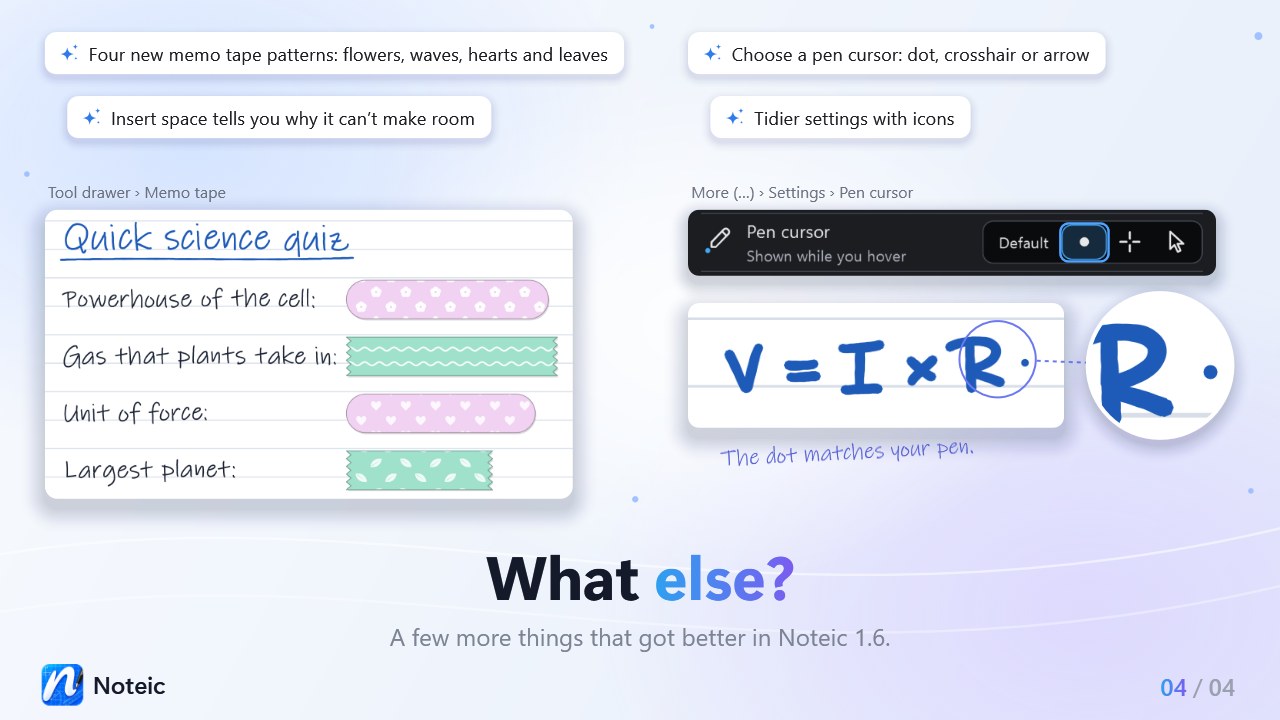
- Four new memo tape patterns: flowers, waves, hearts and leaves.
- Pen cursor: a dot in your pen's color and size, a crosshair or an arrow.
- Small shapes are easy to move with the lasso, and very small selections get a move button.
- Arrows on the scroll bars, and a handle you can grab across the whole bar.
- A full screen button in the zoom box, which stays visible in full screen.
- Sharper icons in the toolbar and menus.
- Tidier settings: icons for the side button, a pen drawing for Top button and more room next to the scroll bar.
- Saving to OneDrive no longer shows “Not responding”, notes that are only online download while you keep working, and big PDFs hold up the window less.
- If Noteic closes unexpectedly, the next start offers a report you can copy.
Version 1.5.1 30 October 2026#
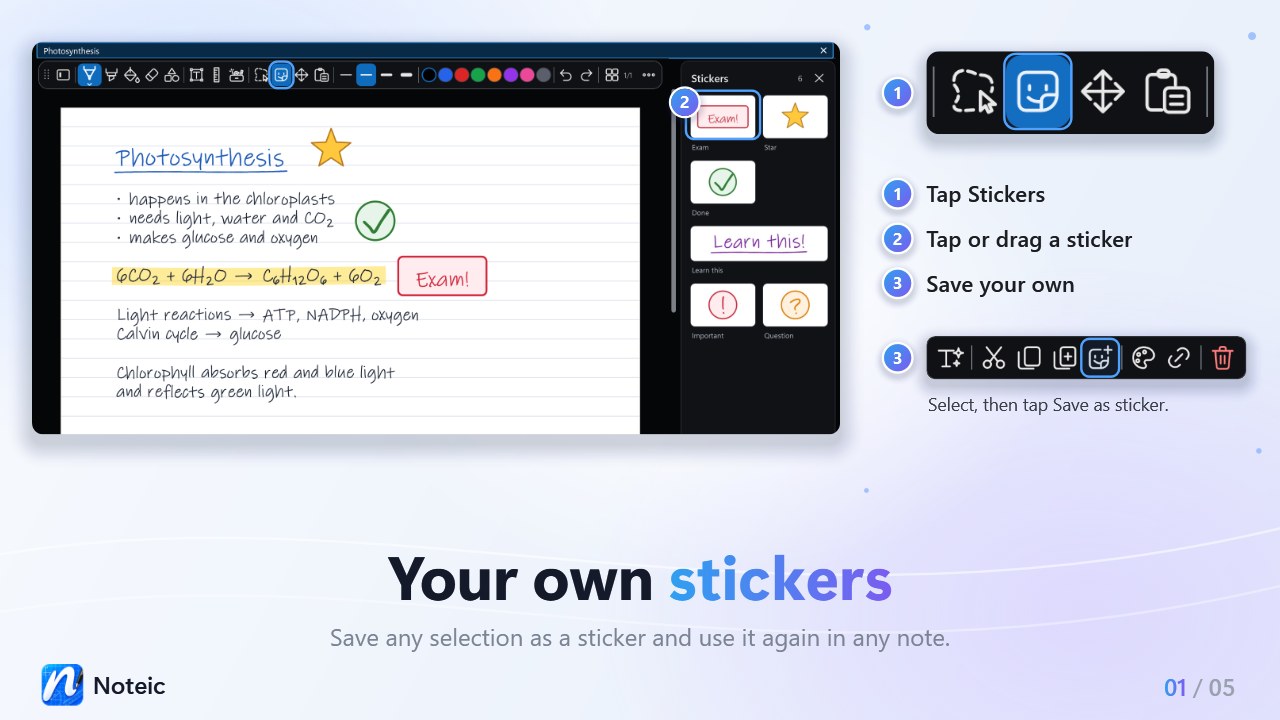
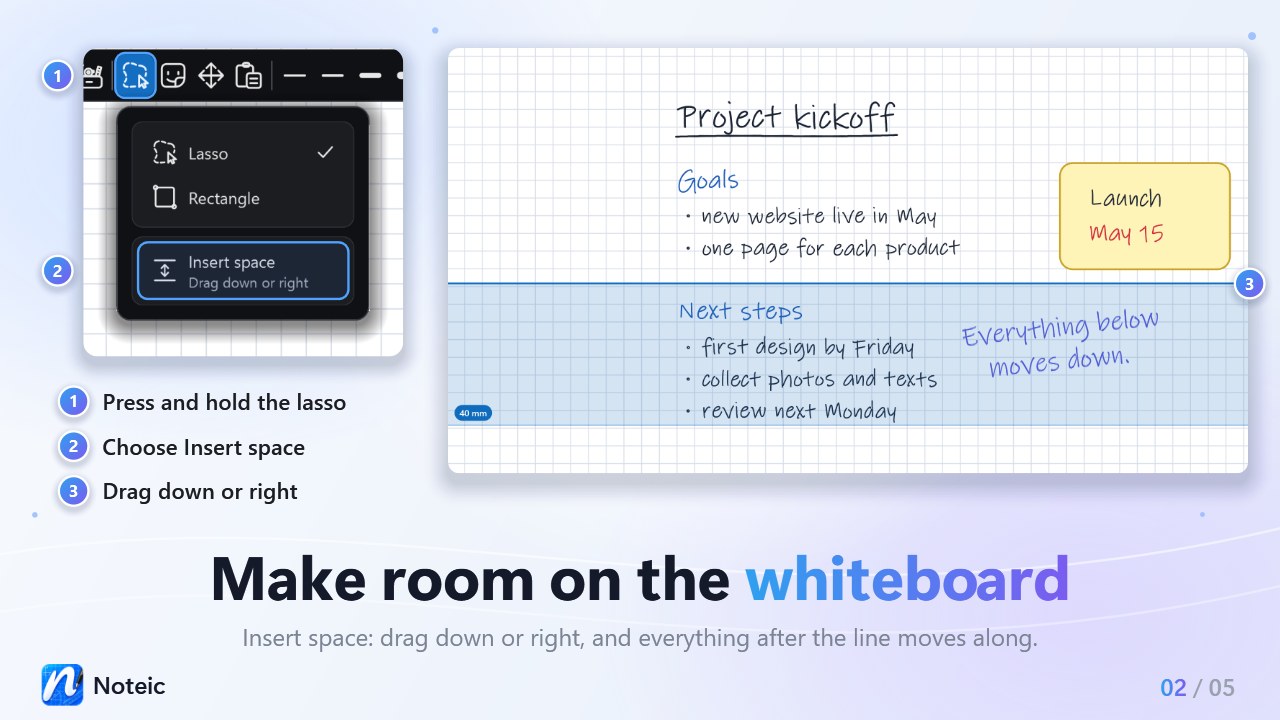
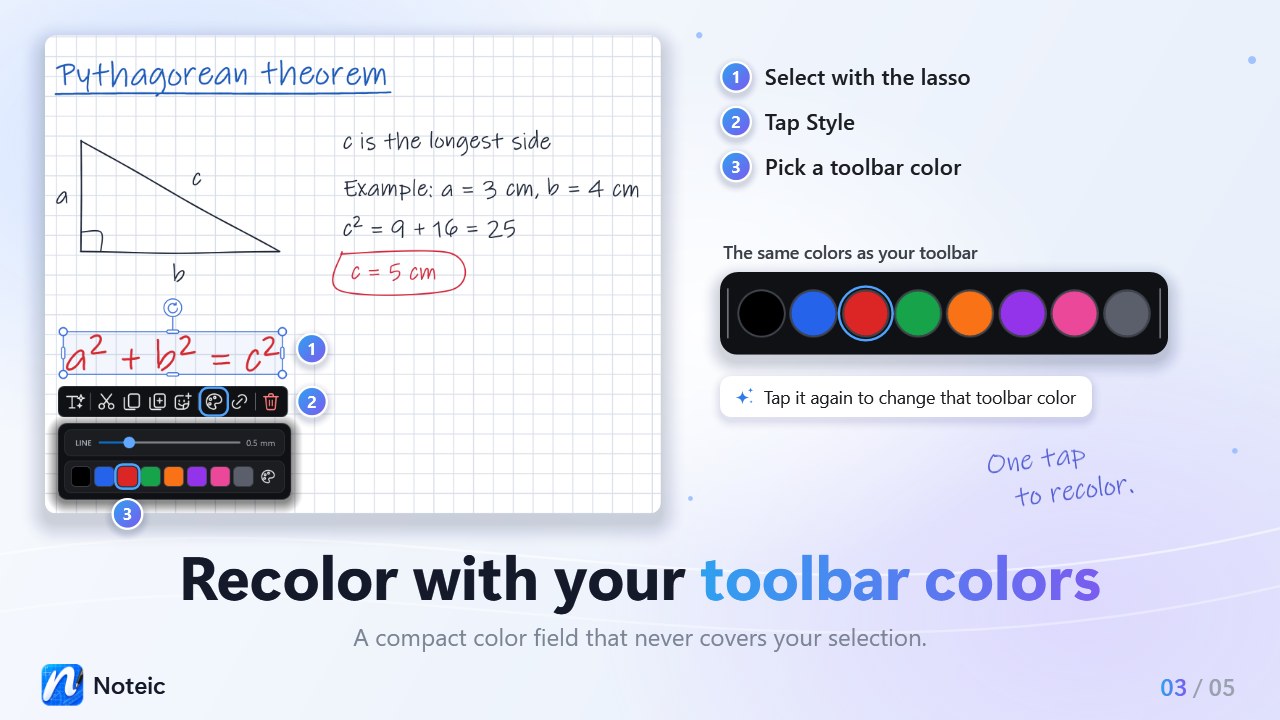
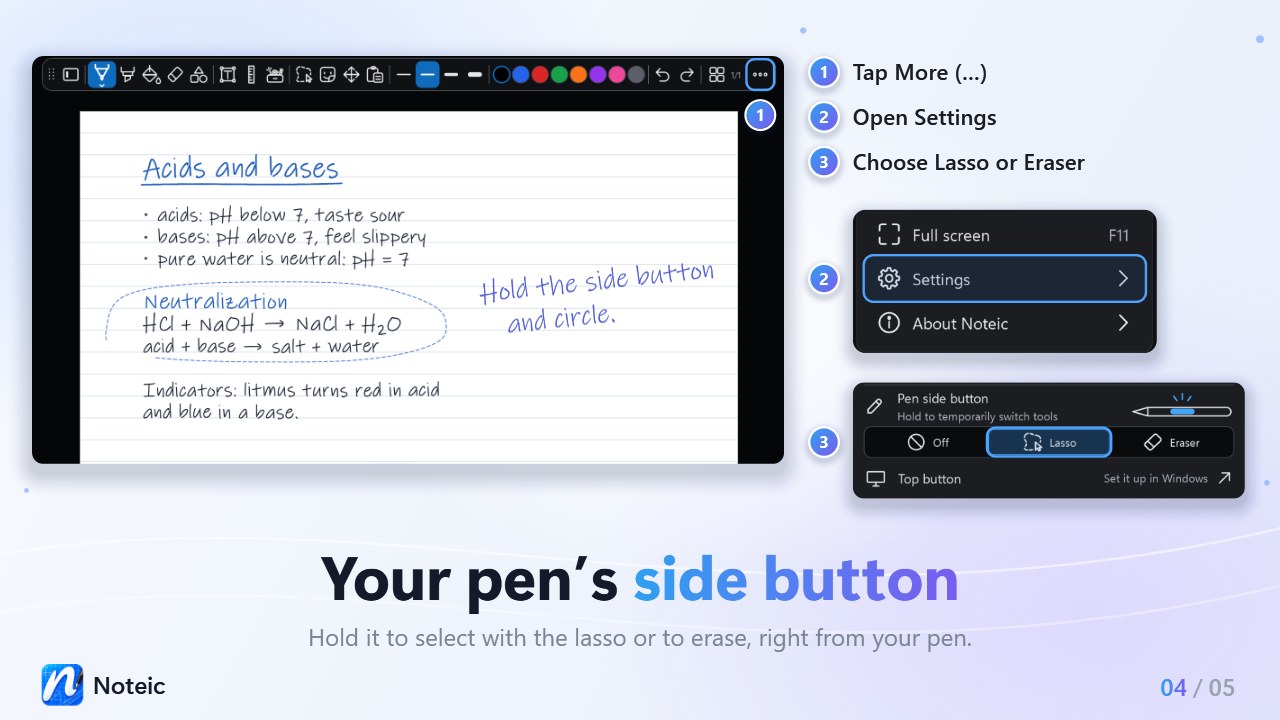
- Stickers: tap Stickers next to the lasso, then tap a sticker or drag it onto your page or whiteboard.
- Make your own stickers: select with the lasso and tap Save as sticker, or drag the selection into the Stickers panel.
- Insert space on the whiteboard: press and hold the lasso button, choose Insert space, then drag down or right to make room.
- Recolor with your toolbar colors: tap Style in the selection bar and pick a color. Tap it again to change that toolbar color.
- Pen side button: hold it to select with the lasso or to erase. Choose under … › Settings › Pen, touch & mouse › Pen side button.
- Ruler in cm or inches: press and hold the ruler button and choose under Units.
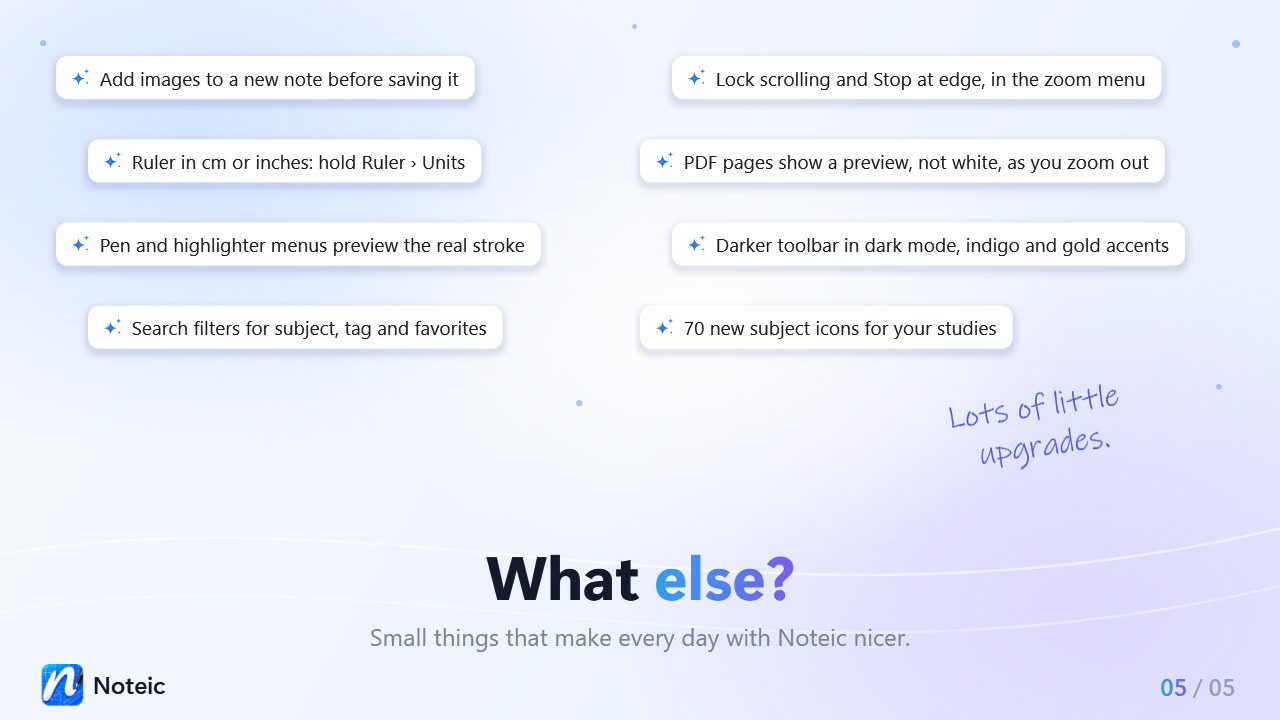
- Search filters for subject, tag and favorites in the library.
- Add images to a new note before you save it.
- Lock scrolling and Stop at edge in the zoom menu.
- PDF pages show a preview instead of white when you zoom out or scroll slowly.
- The pen and highlighter menus preview the real stroke.
- A refined dark mode with a darker toolbar and menus, two new accent colors (indigo and gold), and redesigned Settings and menus.
- 70 new subject icons, sorted by field of study.
Version 1.5 24 October 2026#
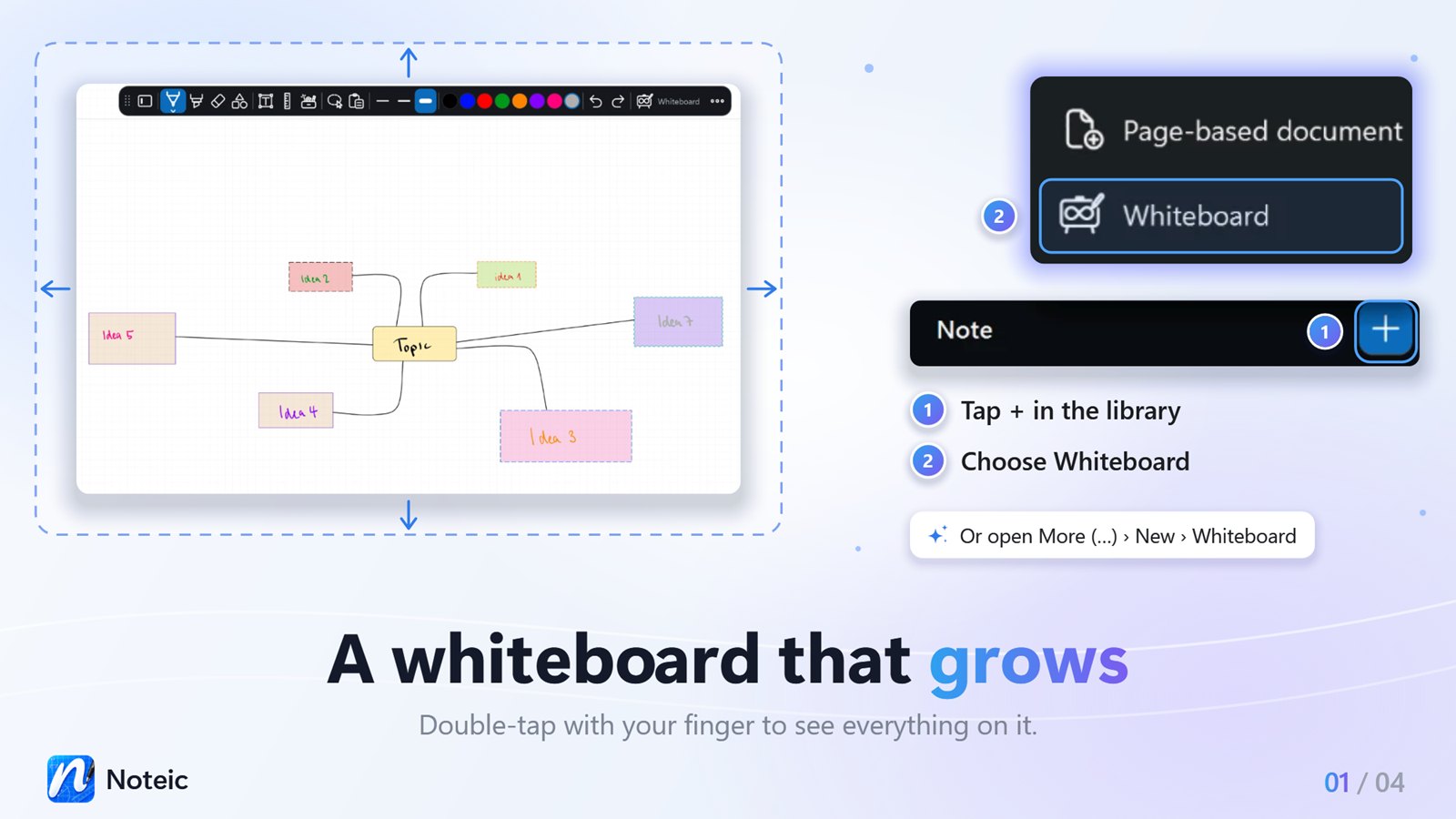
- Whiteboard: one page that grows on all four sides as you write, up to about 10.3 × 21.2 m. Tap + in the library and choose Whiteboard, or open … › New › Whiteboard.
- Show all, or double-tap with your finger, to see everything on your whiteboard.
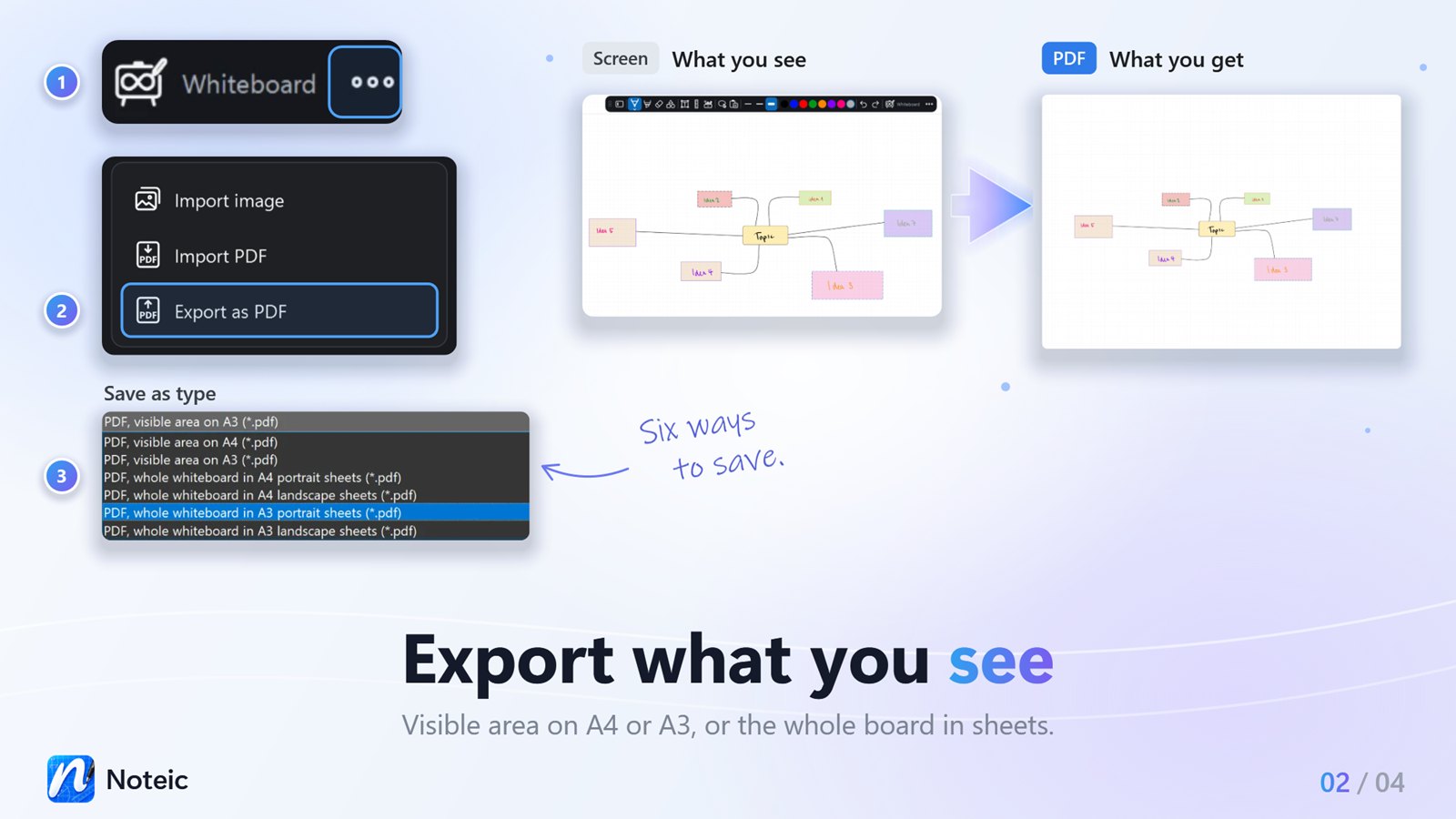
- Export what you see: the visible area as PDF on A4 or A3, or the whole whiteboard in sheets. Choose under Save as type.
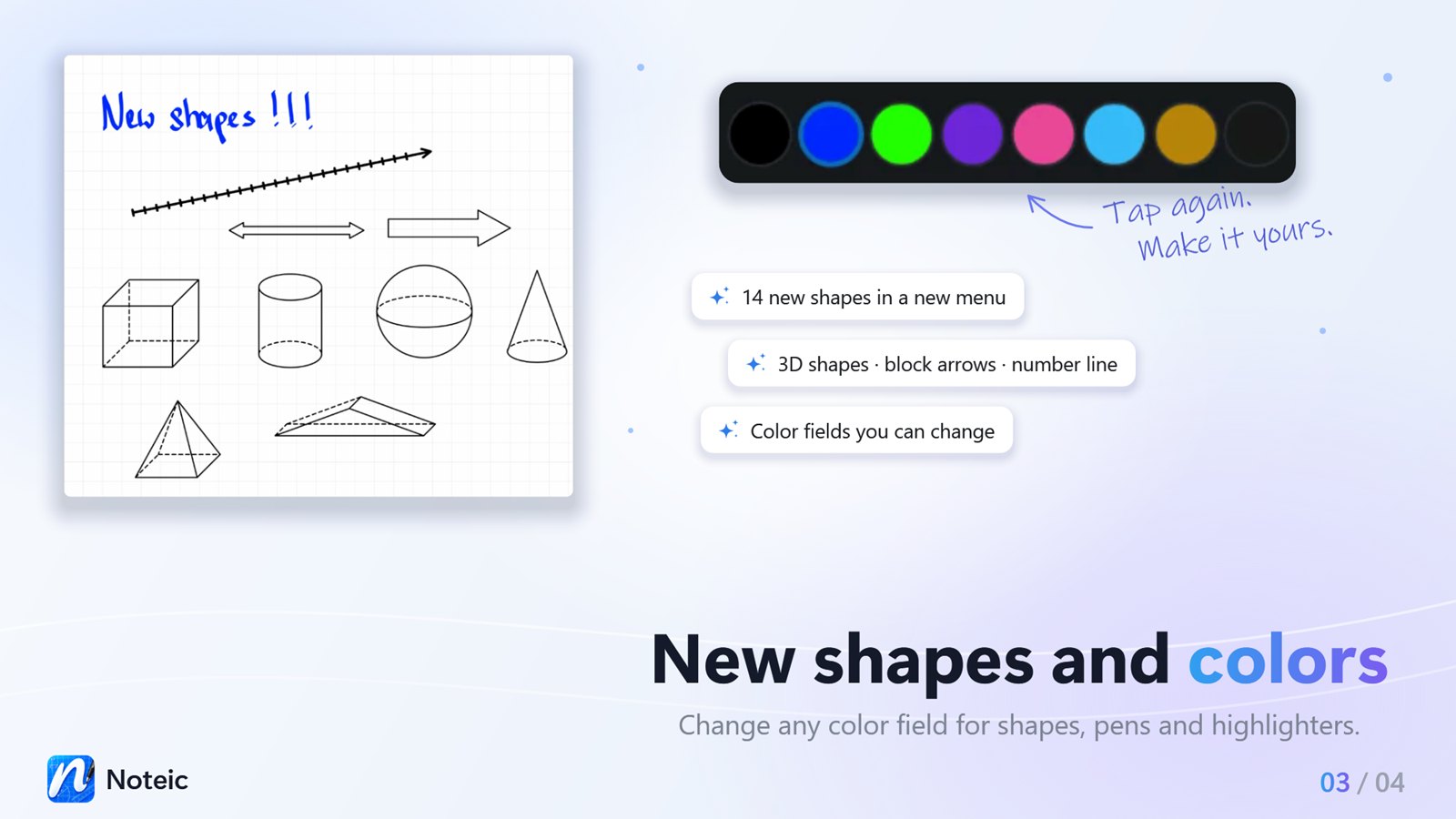
- 14 new shapes in a new shapes menu, including 3D shapes, block arrows and a number line.
- Color fields you can change for shapes, pens and highlighters.
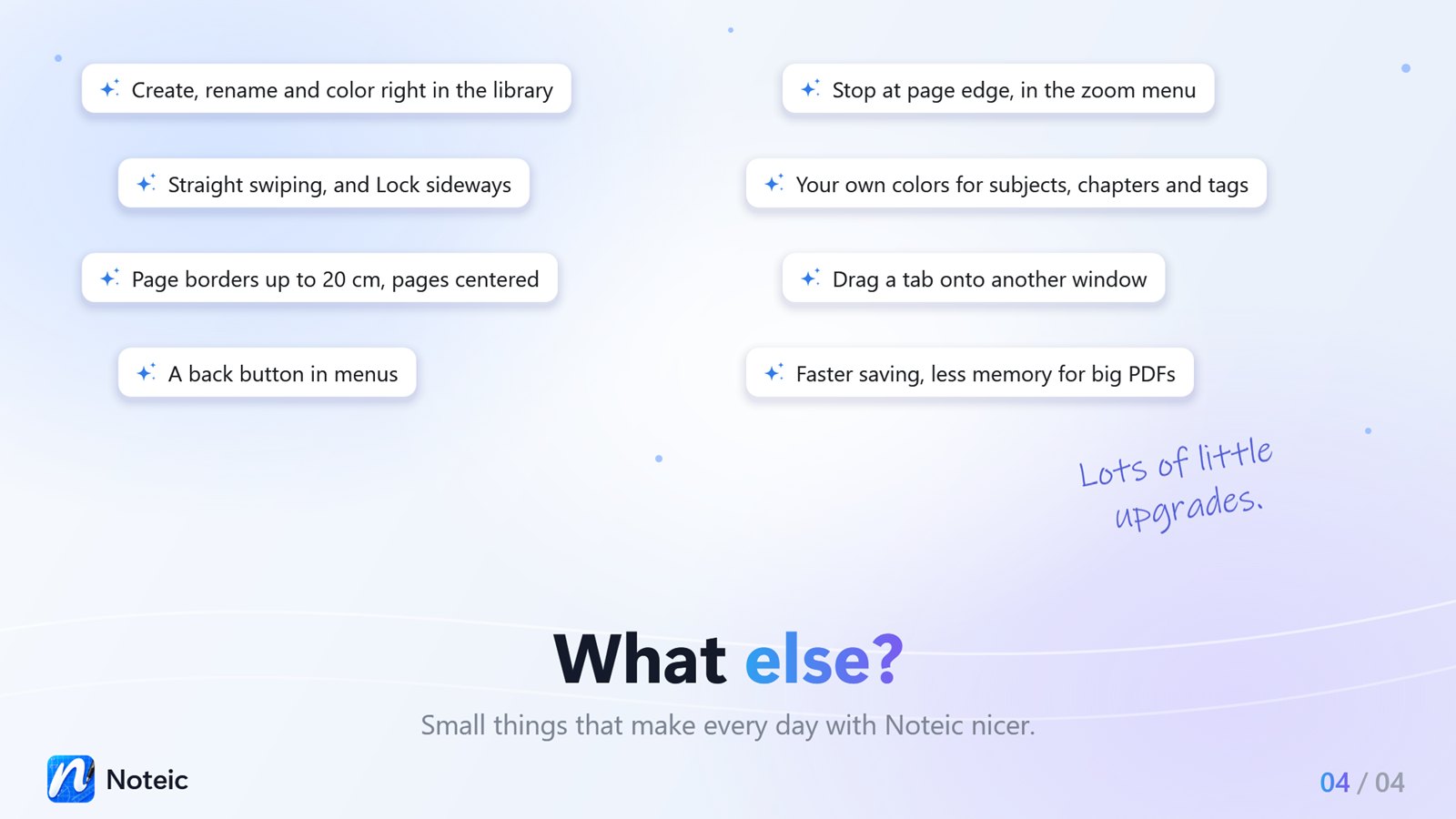
- A tidier library: create and rename (F2) right in the list, and color subjects, chapters and tags with 16 colors you can change.
- Swiping stays straight, and a clearer zoom menu with Lock sideways.
- Extend page borders up to 20 cm left and right, and pages stay centered under each other.
- Drag a tab onto another window, or use … › Move to other window.
- A back button in menus and bigger toolbar icons.
- Faster saving, less memory for big PDFs and fixes for rare crashes.
Version 1.4 14 October 2026#
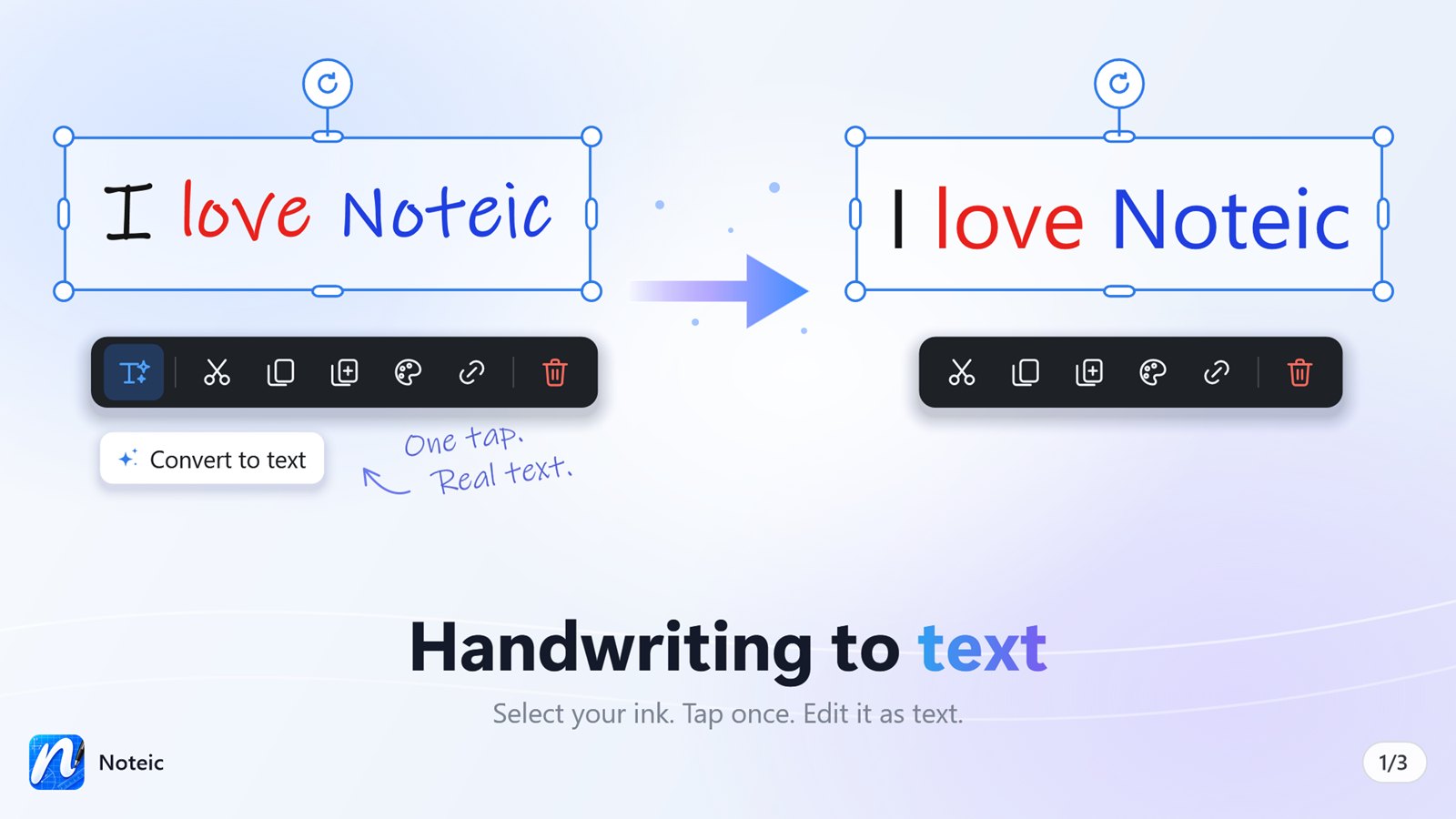
- Handwriting to text: select your ink with the lasso and tap Convert to text. Noteic uses the Windows handwriting recognition for your language, on your device.
- Customize your toolbar: keep the tools you use, move the rest into the drawer or hide them.
- New paper styles: graph, music, writing and hexagon paper, with line weight, your own colors and a page menu with live previews.
- A calmer gray light mode, clearer tabs and easier-to-read dialogs.
- Petrol as a new accent color, and menus always stay inside the Noteic window.
Version 1.3 8 October 2026#
- Extend a page on all four sides for more room, also around PDF pages with a paper pattern
- Tables for typed text: rows, columns, merged cells and cell colors
- A new text toolbar with links, line spacing, more fonts and a sixth highlight color
- Text boxes: move them by the strip on top and rotate them with the knob below
- Text pasted from websites, Word and OneNote keeps its formatting
- Memo tape (formerly Study tape): washi ends and three new patterns
- Tidier menus in blocks that scroll with pen, finger and mouse and never cover the taskbar
- Page overview: 15 brighter bookmark colors and a clearer page menu
- Choose the toolbar position on a simple layout
- Rounder shapes and all memo tape patterns in the PDF export
- A PDF page keeps its PDF when you pick a paper pattern
Version 1.2 5 October 2026#
- Study tape: cover answers and tap to reveal them
- Links on your handwriting to a spot in your notes
- Drag a selection onto another page
- Smoother writing with mouse and tablet
- Smoother scrolling and a smoother library
- The folder path of the note in the window title
- Closing a window moves its tabs to another window
- A warmer light mode and a pink laser pointer
- Less memory and CPU use
- “About Noteic” in the “…” menu
Version 1.1 2 October 2026#
- Noteic is now free: every feature, no trial, no subscription
- Workspaces: switch between note folders, for example one per semester
- Sub-notes, like subpages
- Library: your own order with drag handles for pen, finger and mouse; a tap on a note selects it, its menu opens it; tags on their own line; 24 folder colors plus custom colors; 70 subject icons
- Fill: one tap on the fill button turns it on or off; the 20 fill colors can be changed and are saved
- On x64 devices with external pen tablets, strokes no longer look thicker while you write
- Slightly larger toolbar
Version 1.0 29 September 2026#
First release in the Microsoft Store.