 Noteic
Text, formulas and tables
Type next to your handwriting: text boxes with formatting, tables, and LaTeX formulas with a live preview. Or write with your pen and let Noteic turn it into typed text.
Text boxes#
- Tap Text box in the toolbar.
- Tap the page and type. To set the width yourself, drag sideways instead of tapping.
- Press Esc or tap somewhere else when you are done. An empty box disappears by itself.
To edit a box later, tap it with the text tool, or double-tap it with the lasso.
- Move: drag the strip on top of the box.
- Width: drag the bars on the left and right.
- Size: drag the bottom right corner to scale the text.
- Rotate: drag the knob below the box. It snaps to 0°, 90° and 180°; hold Shift for 15° steps. Double-tap the knob to straighten the box.
The text toolbar#
- Font, sorted into Readable, Handwriting, Code and math, and Decorative.
- Size from 6 to 200 pt, with Smaller and Larger.
- Bold, Italic and Underline (Ctrl+B, I, U).
- Text color with six favorites you can change, and Highlight with six colors.
- List: numbers, letters, Roman numerals, bullets, squares, dashes or a checklist. Tab and Shift+Tab indent.
- Alignment, Line spacing, Link and Formula.
- More (…): Insert table, Strikethrough, Clear formatting, Set as default and Delete text box.
New text boxes start in Segoe UI, 12 pt, black. Set as default makes your current font, size and color the new default.
Write with your pen New in 1.7#
You can fill a text box without a keyboard. Write by hand in a small handwriting field, and Noteic turns it into typed text, with the handwriting recognition built into Windows.
- While you edit a text box, tap into it with your pen. The tap sets the cursor, and the handwriting field opens next to the box, with the hint Write here.
- Write in the field. A moment after you lift the pen, your words turn into typed text at the start of the line.
- Tap Insert text. Your words go into the text box at the cursor, and the field closes.
- Another reading: a small bar shows the last word and up to three other readings. Tap one to replace the word.
- Delete with the pen: strike through words or scribble over them. This works for words that are already typed text and for fresh ink.
- Delete last word removes the ink you just wrote, or else the last word.
- Add a line gives you a second line.
- Close, Esc or a tap with the pen outside closes the field. What you did not insert is discarded.
- Only the pen opens the field. With your finger or the mouse, the text box works as before.
The same field opens over a search field when you hold your pen over it or tap it with the pen: over Find in this note (Ctrl+F) and over the search field of the library. There, Insert text puts your words into the search field. See Search your notes.
If Windows has no handwriting recognition for your language yet, the field says so: “No handwriting recognition — see Windows Settings › Time & language”. See Before you start.
Formulas#
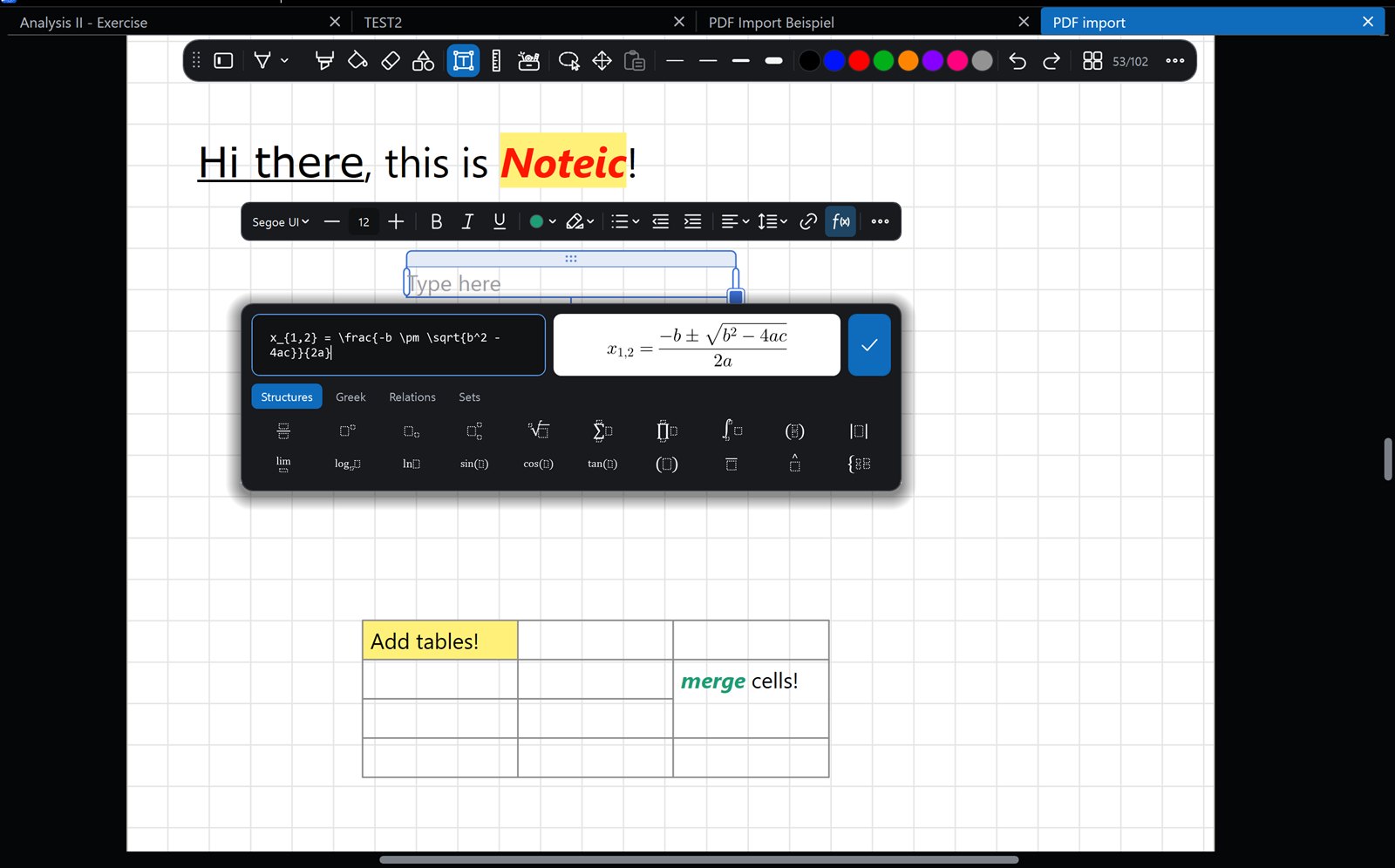
- In a text box, tap Formula in the text toolbar.
- Type LaTeX, for example
x_{1,2} = \frac{-b \pm \sqrt{b^2-4ac}}{2a}. The preview shows the result as you type. - Or tap the building blocks under Structures, Greek, Relations and Sets. Tab jumps to the next empty box.
- Tap the check mark or press Ctrl+Enter.
The formula is placed as its own object just below the text box, in the box's text color. To change it, select it with the lasso and tap Edit formula, or double-tap it.
Tables#
- In a text box, open More (…) › Insert table.
- Choose a size, up to 6 × 6 to start. The table appears below the box.
- Type in the cells. Tab goes to the next cell; Tab in the last cell adds a row.
In a cell, More (…) inserts and deletes rows and columns, merges cells to the right or below, splits merged cells and sets a Cell color. Tables have up to 10 columns.