 Noteic
Pages and paper
Ten paper styles on real page sizes, with your own colors. Extend a page when you need more room, and keep track of every page in the overview, with bookmarks and an outline.
Open the page menu#
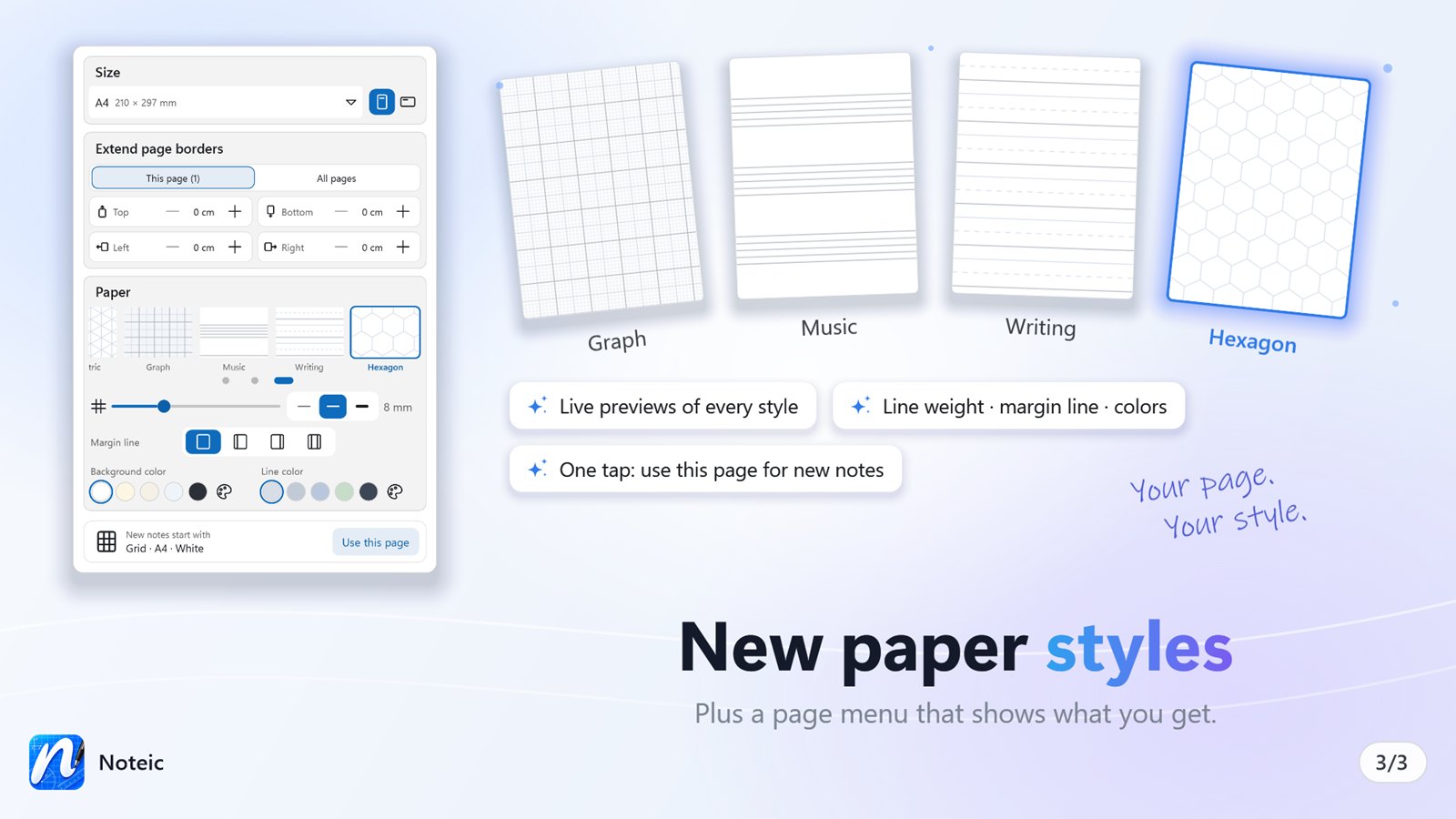
Open … (More) at the end of the toolbar and tap Paper & size. Every change applies to the current page and can be undone. New pages copy the size and paper of the page before them.
The arrow at the top of the page menu, or Esc, takes you back to the … menu. Since Noteic 1.7, Paper & size is right in this menu. You also find it under … › Settings › Pages.
Size#
- Paper size: A6, A5, A4, A3, Letter, Legal, Tabloid, B5 (JIS), F4 and Oficio.
- Portrait or Landscape.
Paper#
Each paper style shows a live preview in your colors:
- Blank, Ruled, Grid and Dots
- Cornell: a cue column on the left and a summary at the bottom
- Isometric
- Graph: lines every 1, 5 and 10 mm
- Music: staves
- Writing: top line, dashed middle and baseline
- Hexagon
Below the styles:
- Spacing from 3 to 20 mm (the space between staves for music, the line height for writing paper).
- Line weight: Thin lines, Normal lines or Bold lines.
- Margin line: none, left, right or both, with its own color and distance from the edge.
- Background color and Line color: five favorites each, plus a custom color with a Hex box. Tap a favorite to use it, tap it again to change it.
Paper for new notes#
At the bottom, New notes start with shows the page new notes get, for example “Grid · A4 · White”. Tap Use this page to make the current page the template. Existing notes do not change.
Extend a page#
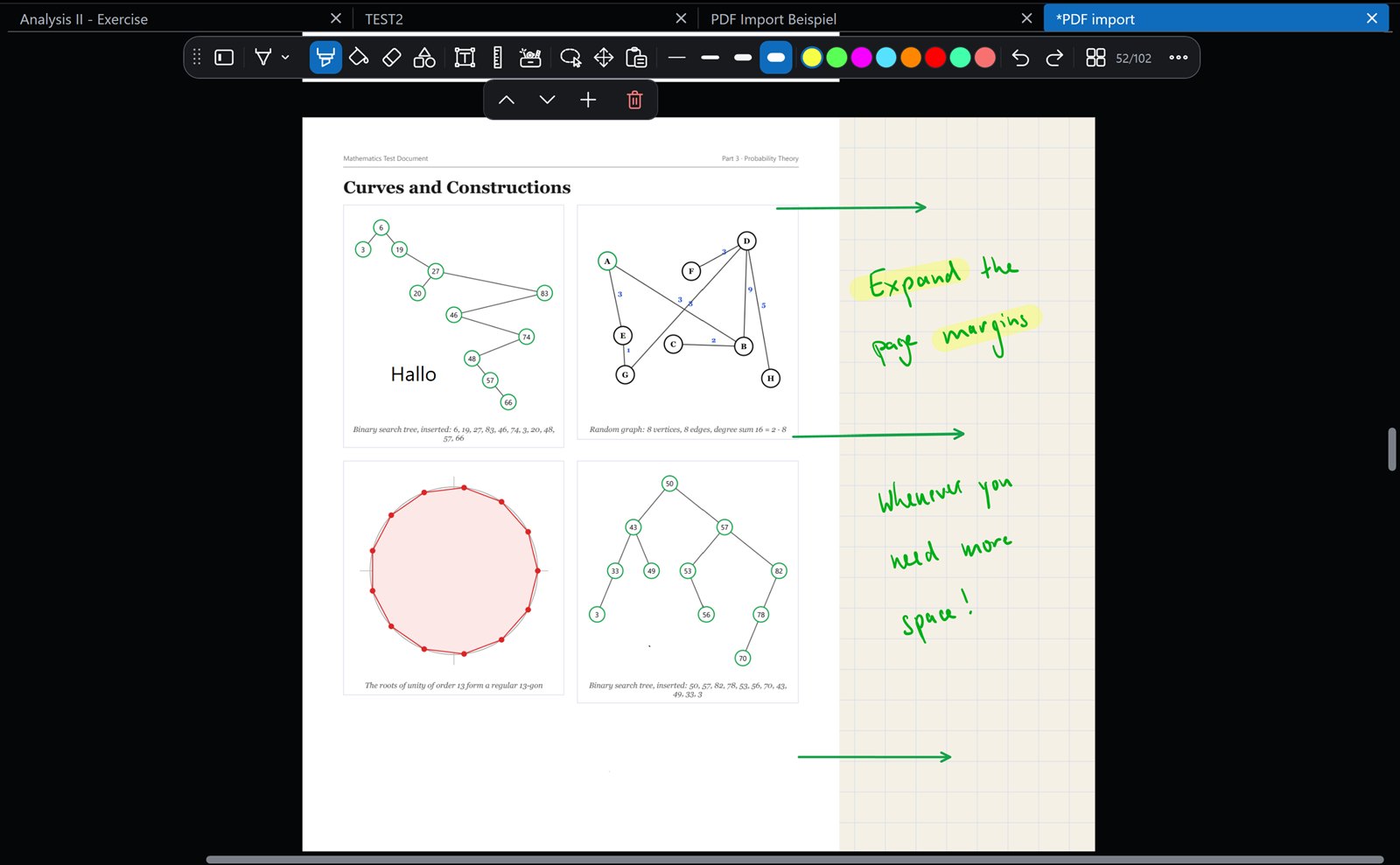
Need more room next to a page or a PDF? Under Extend page borders:
- Choose This page or All pages.
- Add room in steps of 1 cm: up to 5 cm at the top and bottom, up to 20 cm on the left and right.
- The new area uses the page's paper. Reset shrinks the borders back to your content.
- Pages with wider borders stay centered under each other.
Dark pages#
To see your notes dark on screen without changing their paper, turn on Dark pages under … › Settings › Appearance. Files, exports and PDF pages stay as they are. See Dark pages.
Page overview#
Tap the page number in the toolbar, or press Ctrl+G. Pages opens and shows all pages at once. The current page has a colored ring. Tap a page to jump to it. Esc or the × closes Pages.
Three tabs at the top choose what you see. Noteic remembers the tab you used last.
| All | Every page of the note. |
|---|---|
| Bookmarked | Only the pages with a bookmark. You can choose it as soon as one page has a bookmark. |
| Outline | The outline of the note as a list, next to your pages. It came with Noteic 1.7. See Outline. |
- Go to: type a page number in the Go to field at the top and press Enter.
- Reorder: drag a page by its handle, or press and hold it. Pages can be reordered in All and Outline, where every page is shown.
- Bookmarks: the ⋮ menu under each page sets one of 15 bookmark colors. No bookmark removes it.
- Outline: Add to outline… in the same menu makes the page an entry of the outline.
- Page commands in the same menu: Insert page after, Duplicate page, Move page to the beginning or to the end, Copy page to… and Move page to… another note, and Delete page.
Between pages, a small bar moves the page above up or down, inserts a page or deletes one. Page Up and Page Down scroll page by page.