 Noteic
Customize the toolbar
Keep only the tools you use. Move the rest into the drawer or hide them, and put the toolbar where it suits you.
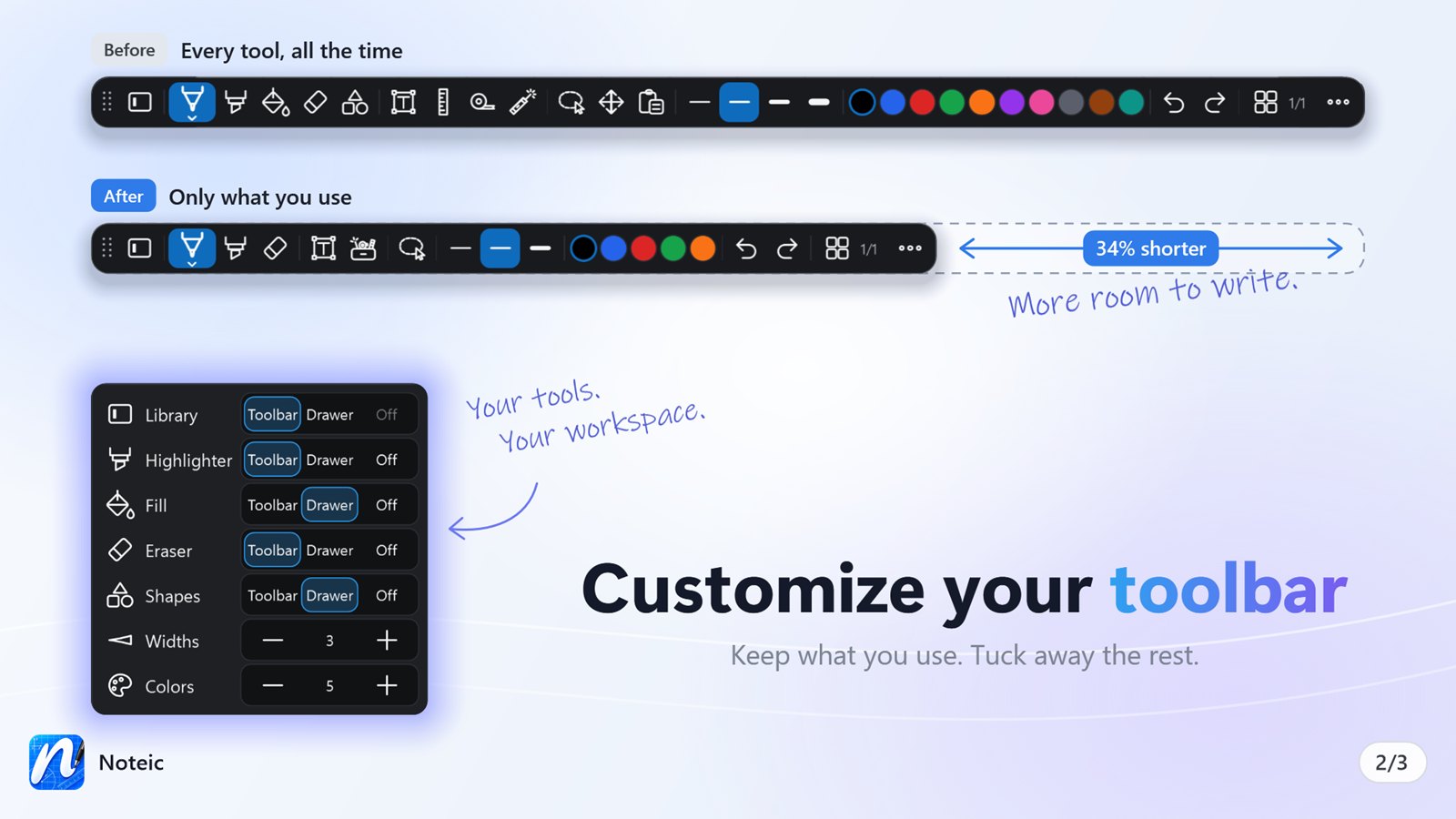
Choose your tools#
- Open … › Settings, or press Ctrl+,.
- Under Appearance, tap Customize toolbar. The list of tools opens inside Settings.
- For each tool, choose Toolbar, Drawer or Off.
- For Widths and Colors, set with − and + how many the toolbar shows.
Every change shows in the toolbar right away. The arrow at the top goes back to Appearance.
- You can set Library, Highlighter, Fill, Eraser, Shapes, Text box, Ruler, Lasso selection, Pan, Paste, Memo tape, Laser pointer and Stickers.
- Library and Pan can go into the drawer but not off. The pen, Undo and Redo always stay.
- Memo tape and the laser pointer start in the drawer. Stickers start in the toolbar, right after the lasso.
- A tool set to Off no longer reacts to its key.
- Reset, at the top next to the title, brings back the standard toolbar.
Widths and colors#
- Widths: up to 4. The toolbar starts with 4.
- Colors: up to 12. The toolbar starts with 8.
- Go below 1 and the number reads Off: the widths or colors are gone from the toolbar.
- Every pen and the highlighter has twelve colors in each of its palettes. The toolbar shows as many of them as you set here, starting with the first.
- With memo tape, the toolbar shows at most 10 colors.
- The Style field of a selection shows the same colors as the toolbar. See Style and color.
How to change a width or a color is on the Pens page.
The tool drawer#
Tools set to Drawer wait behind the drawer button in the toolbar. Tap it to open the drawer and pick a tool. The drawer button only shows when something is in it.
Move the toolbar#
Drag the grip at the start of the toolbar to the top, bottom, left or right edge of the window. Noteic keeps the toolbar where you put it.
The toolbar never runs past the edge of the window. When the window is too small for every tool, the toolbar scrolls.