 Noteic
Tabs and windows
Keep several notes open in tabs, or put two notes side by side in their own windows.
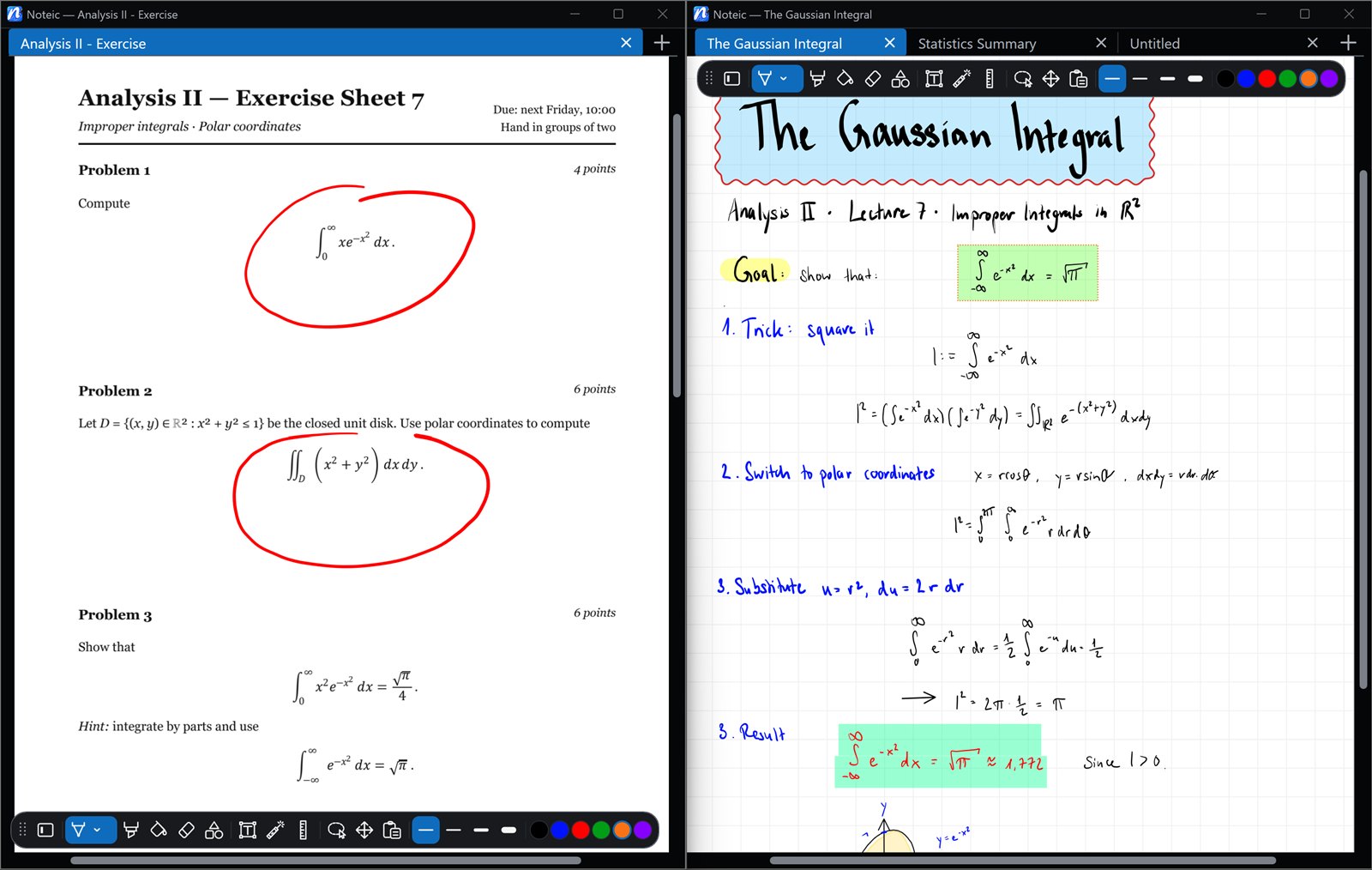
Tabs#
- Every note you open gets a tab. Close it with its ×, a middle click, or Ctrl+W.
- Drag tabs to reorder them. With pen or finger, hold the tab for a moment before you drag.
- Ctrl+Tab goes to the tab you used last, Ctrl+Page Down and Ctrl+Page Up to the next and previous tab.
- … › Open in background opens a note as a tab without switching to it.
Noteic keeps up to 12 notes open. When you open more, it saves and closes the tab you used longest ago. Untitled notes are never closed this way.
The tab bar#
Tabs got a new look in Noteic 1.7. The tab you are in is a rounded field with a line in your accent color at the bottom; the other tabs are separated by thin lines.
- Whole title: when the title of the tab you are in is cut off, this tab gets wider to show more of it, and the other tabs make room.
- Many tabs: when the tabs do not all fit, the tab bar scrolls. Tap the arrows at its ends, turn the mouse wheel over it or swipe it with pen or finger. From the tenth tab on, it always scrolls.
- Always in view: the tab you are in stays fully visible, also when you make the window narrower.
- All tabs: with many tabs, a small arrow at the end of the tab bar lists all of them under OPEN TABS.
Windows#
- … › New window moves the current tab into its own window. It needs at least two tabs in the window.
- Or drag a tab up or down out of the tab bar: it opens in a new window where you drop it.
- To move a tab into another Noteic window, drag it onto the tab bar of that window. A mark shows where it lands.
- When you close a window while another is open, its tabs move to the other window.
The window title shows where the note lives, for example “Noteic › Statistics › Week 2 › Lecture”.
Move to other window#
Without dragging: open … › Move to other window. The tab you are in moves into another Noteic window.
- With one other window open, the tab moves there right away.
- With several other windows, a list opens. Each window is named after the tab it shows. Tap the one you want.
- With no other Noteic window open, the entry is grayed out. Use New window first.
Full screen#
… › Full screen, F11 or the full screen button in the zoom box hides the title bar and scroll bars; tabs and toolbar stay. The zoom box appears when you zoom.
In full screen, the zoom box stays visible. Tap the button in it or press F11 again to leave.
To keep the zoom box on screen all the time, tap the pin at its end, Pin zoom bar. Unpin zoom bar lets it hide again. This came with Noteic 1.7.