 Noteic
Highlighter
The highlighter marks behind your writing, so your ink and text always stay readable on top.
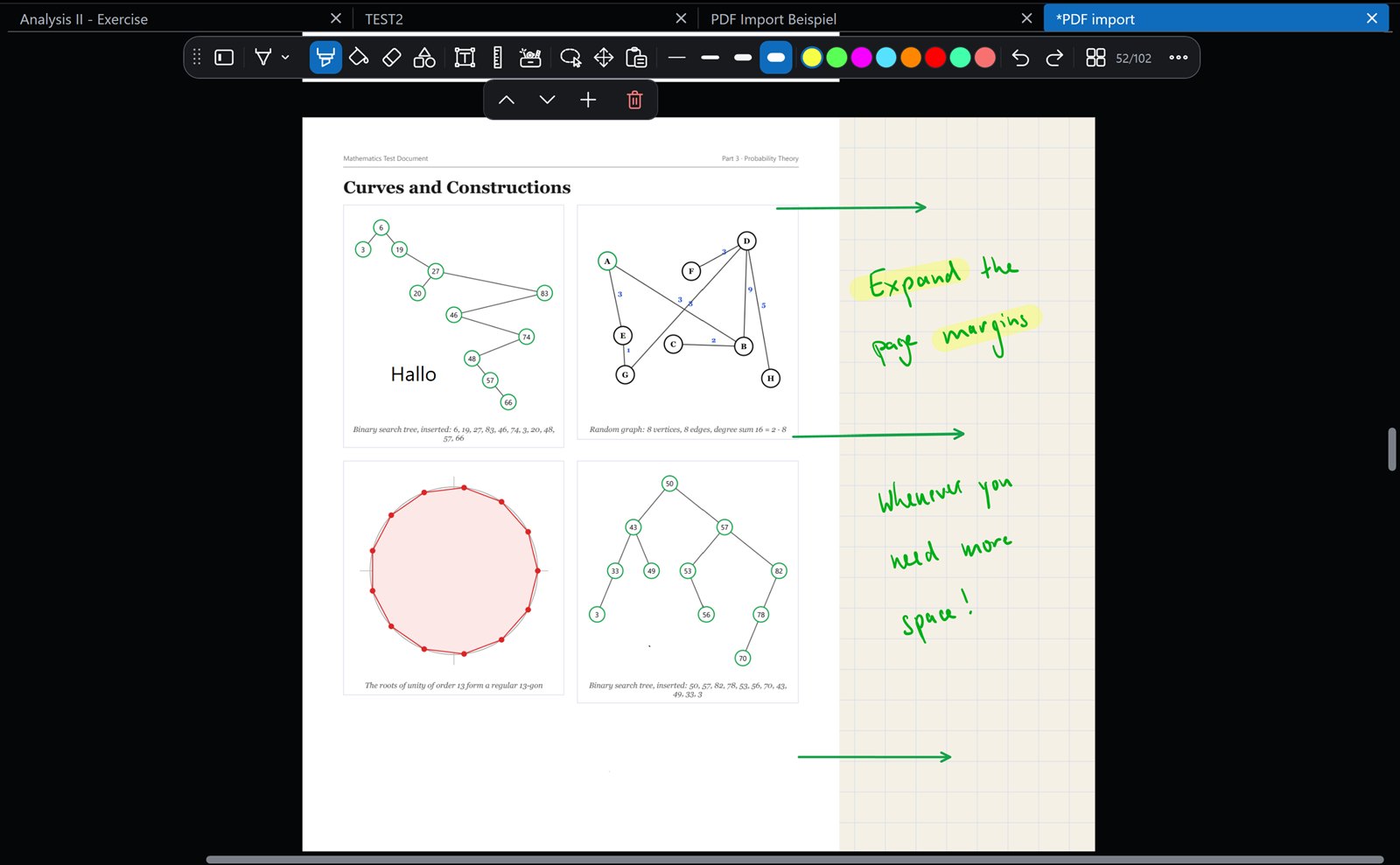
Use the highlighter#
- Tap Highlighter in the toolbar.
- Pick a width and a color. The highlighter has its own colors, starting with yellow, lime, pink, sky blue, orange and purple.
- Draw over your notes. The marks sit behind pen ink, shapes and text.
Highlighter ink is see-through. Widths go up to 10 mm.
With a keyboard, H picks the highlighter. You can also set the side button of your pen to Highlighter: hold it to highlight, let go to write again. See Pen side button.
In an imported PDF, you can also select the text itself and tap a highlight color. See PDF › Select text.
Settings#
Tap the active highlighter again to open its settings:
- Pressure sensitivity: on by default.
- Hold for shape: hold the pen still at the end of a stroke, and it becomes a straight line or a clean shape. Off by default. See below.
- Tip shape: Round or Square, each with a short stroke that shows how it looks. Square, like a real marker, is the default.
Tap the active highlighter color again to pick one of 20 color fields; tap a field again to change it. Like the pens, the highlighter has three palettes of twelve colors each, and the toolbar shows up to twelve of them (see Customize the toolbar).
Hold for shape#
- Tap the active highlighter again and turn on Hold for shape.
- Draw a line or a shape. At the end, hold the pen still for about a second.
- The stroke snaps into place. Lift the pen.
- An open stroke becomes a straight line. Keep drawing after it has snapped to add a corner.
- A closed stroke becomes a clean rectangle, triangle, ellipse, circle or polygon.
- The result is still highlighter: see-through, in your color and width, with round or square ends.
It works the same way as with the pens. See Pens › Hold for shape.
Faster ink#
Earlier pen input also works with the highlighter. Fast pen tip and Ink prediction are for the three pens only, not for the see-through ink of the highlighter. See Pens › Faster ink.