 Noteic
Library
Your notes, sorted like a binder: Subjects, Chapters and Notes, with colors, icons, tags and favorites. Create, rename and color everything right in the list, and search inside your notes.
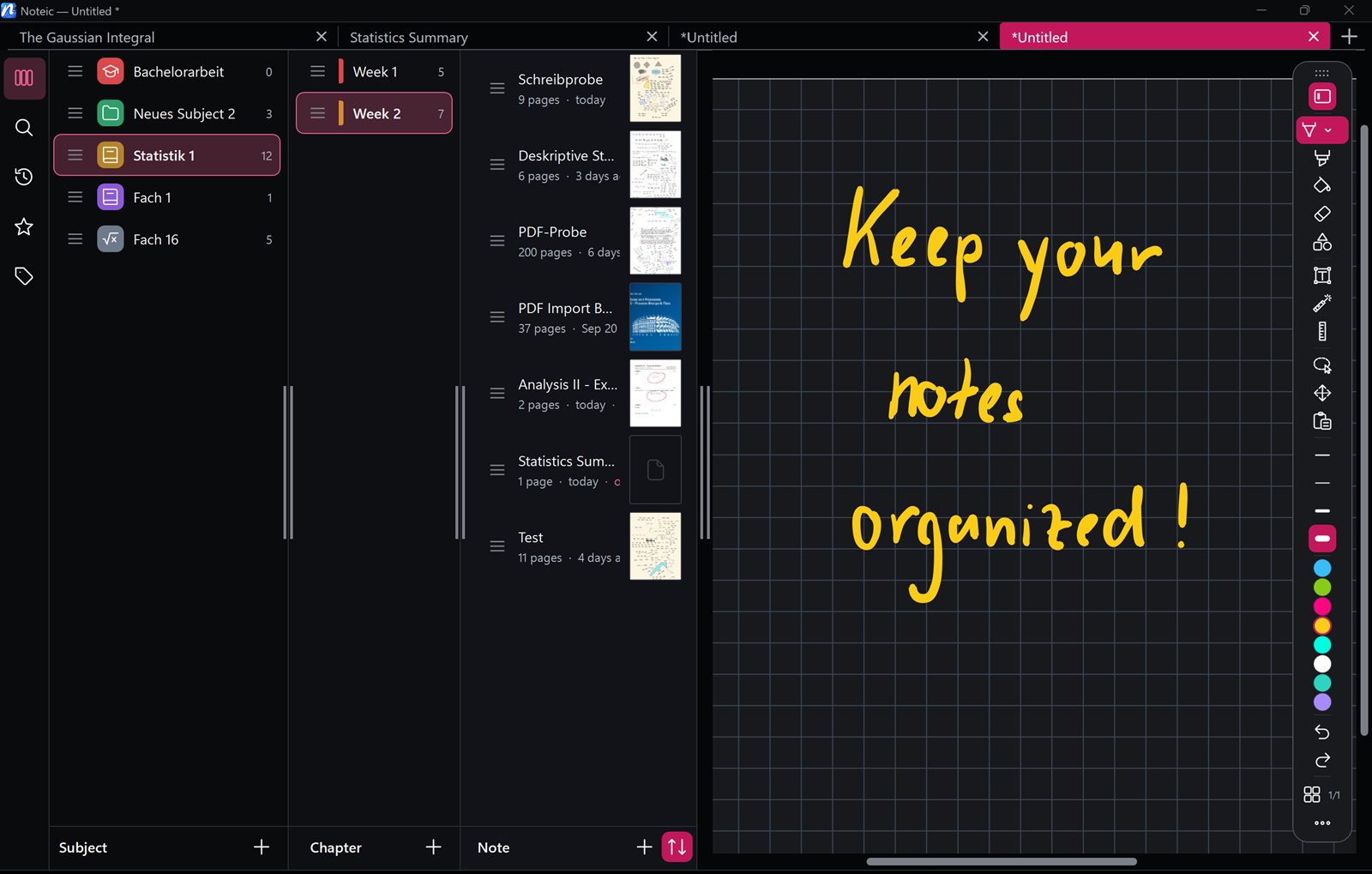
Open the library#
Tap the library button at the start of the toolbar, or press Ctrl+B.
The icons on the left switch between Library, Search, Recently opened, Favorites and Notes by Tags.
Columns side by side#
Drag the edge of the library to make it wider or narrower. Its width decides how many columns you see; there is no switch for it.
| Narrow | One column: the Chapters of your Subject and, below them, the Notes of the Chapter you chose. |
|---|---|
| Wider | Two columns: Chapters and Notes side by side. |
| Wide | Three columns: Subjects, Chapters and Notes side by side, with the workspace button above the Subjects. |
With one or two columns, your Subject stands above them. Tap it to switch to another Subject.
Drag the handle between two columns to give a column more or less room. Noteic remembers the widths.
Subjects, Chapters and Notes#
A Subject (for example a course) holds Chapters (for example weeks), and Chapters hold your Notes. On disk they are simply folders and .noteic files in your workspace.
- Tap New subject below the Subjects to create a Subject. In a library with one or two columns, tap the Subject above the columns first: New subject is at the end of the list that opens.
- Tap New chapter below the Chapters to add a Chapter to the Subject.
- Tap New note below the Notes and choose Page-based document or Whiteboard.
A name field appears right in the list, at the place where the new item will be. Type the name and press Enter, or tap next to it. Esc cancels, and nothing is created.
A tap on a note selects it. To open it, right-click or press and hold the note and choose Open in new tab, Open in background tab or Open in new window. A note that is already open shows Open in its row, and its menu offers Switch to its tab instead.
The note menu#
Right-click or press and hold a note for:
- Add to Favorites, Rename, Move to… and Assign Tags
- Make sub-note of …: tucks a note under the one above it. Make main Note undoes it.
- Show in Explorer and Move to Recycle Bin
Rename turns the row into a name field. You can also press F2 to rename the item you tapped last.
Subjects and Chapters have Color and Subjects an Icon, 140 icons sorted by field of study. Color opens 16 color fields right under the row: tap one to use it, tap it again to change it, or choose No color. Subjects, Chapters and tags each keep their own 16 colors. Chapters also offer Import PDF….
Drag the dotted handle of a row to put notes, Chapters and Subjects in your own order. Deleted items go to the Windows Recycle Bin, so you can restore them from there.
Search and filters#
Tap Search on the left and type. Under Results, Noteic lists the Notes and Chapters of the whole workspace whose name matches, and marks the match in yellow.
Below the search field, three filters narrow the list, with or without text:
- All or Favorites.
- All subjects or one Subject.
- All tags or one tag.
With your pen, you can also write in the search field: hold the pen over it or tap it. See Write with your pen.
Search inside your notes New in 1.7#
From two characters on, the search also looks inside your notes. Below the names, Inside notes lists the notes that contain your text, in handwriting, typed text, tables, formulas or PDF text.
- Each line shows what was found and on which pages, for example “3 hits · p. 12, 14, 31”. Results that only come close are counted as similar.
- Tap a line: Noteic opens the note, opens its search field with your text and goes to the first result.
- The three filters apply here too.
- If some notes were not read yet, a line below the list says so, for example “2 notes not read yet”. Tap Read now and stay in Search until it is done.
What is read, when and how to turn it off is in Search your notes.
Recent, favorites and tags#
- Recently opened lists your last 20 notes.
- Favorites lists the notes you starred.
- Tags: in the tags view, tap New tag below the tags to add a tag (in a narrow library: Add tag). It gets the next free of 16 colors. Give tags to notes with Assign Tags, and tap a tag to see its notes. Right-click or press and hold a tag for Rename, Color and Delete.
Workspaces#
A workspace is a folder with all your notes, for example one per semester. Each one keeps its own recent notes and favorites.
- Open the Subject switcher at the top of the library (or the workspace button above the Subjects in the wide view) and tap the workspace row.
- Pick a workspace from the list, or tap Add Workspace… to choose another folder. Nothing is moved.
- The × on a workspace removes it from the list. The folder and its notes stay untouched.