 Noteic
Stickers New in 1.5.1
Save anything you wrote or drew as a sticker, for example a star, a check mark or an “Exam!” label, and place it again in any note or whiteboard.
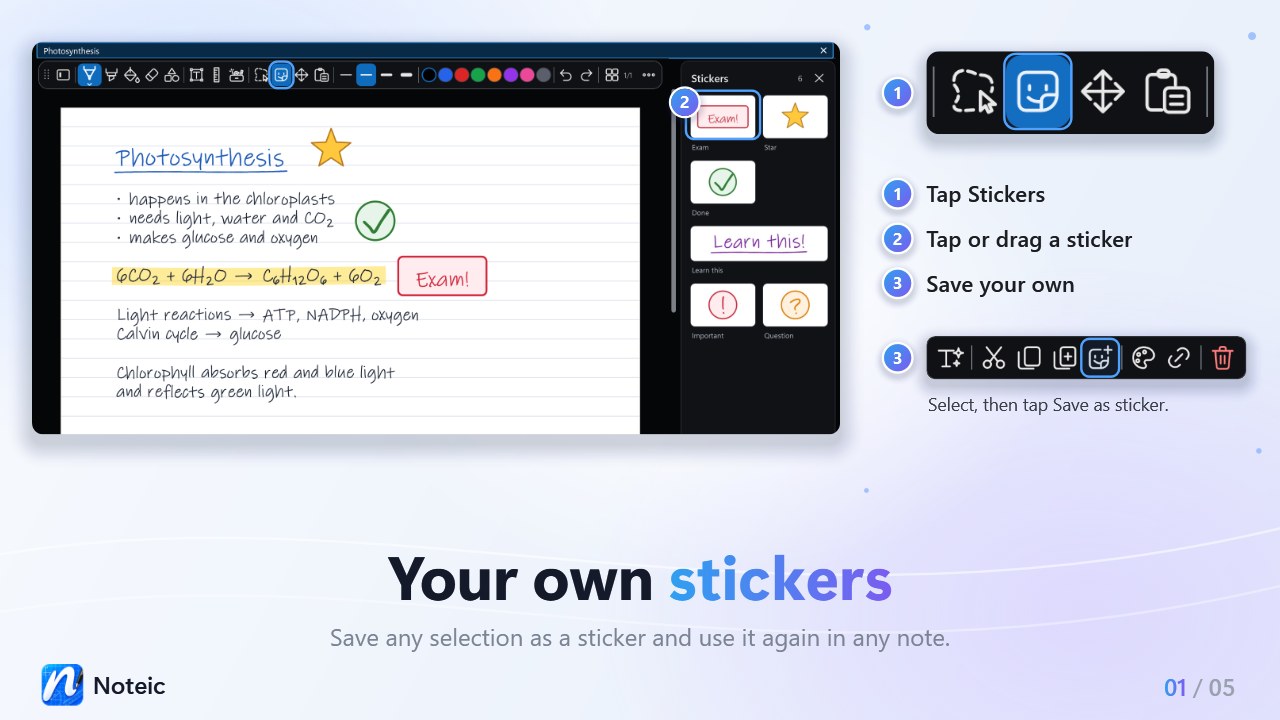
Open your stickers#
Tap Stickers in the toolbar, right after the lasso. The Stickers panel opens on the right, next to the page, and shows how many stickers you have. The newest sticker is on top. Tap the × or the Stickers button again to close it.
In a narrow window, the panel floats over the right side of the page instead.
Place a sticker#
- Tap a sticker: it lands in the middle of the view, already selected, so you can move it right away.
- Drag a sticker onto the page with the pen or the mouse. With a finger, press and hold the sticker first, then drag. A preview in real size shows where it lands: “Release to place”.
Stickers work on pages and on whiteboards. A sticker becomes normal content of your note: move, scale, rotate or recolor it with the lasso. One Ctrl+Z takes it away again. Esc cancels a drag.
Make your own#
- Select handwriting, shapes, text, images or anything else with the lasso.
- Tap Save as sticker in the selection bar (the sticker symbol with a +).
Or drag the selection into the open Stickers panel: “Release to save sticker”. Your selection stays where it is on the page.
The panel then shows “Sticker saved” with Undo. The new sticker gets a name from what is in it, such as Handwriting, Highlight, Shapes, Image or Text.
Organize stickers#
- Menu: right-click a sticker, or press and hold it, for Rename, Move to top and Remove from stickers.
- Reorder: drag a sticker inside the panel to a new place (“Move here”). The order is kept.
- Remove: drag a sticker onto Remove from stickers at the bottom of the panel, or use the menu. It goes to the Windows Recycle Bin, and Undo brings it back. Stickers you already placed in your notes stay.
Where stickers are saved#
Stickers live in your workspace, in a hidden folder next to your notes. Each sticker is a small .noteic file, so stickers sync with OneDrive just like your notes. Links are not part of a sticker.
Don't need stickers? Move the button into the tool drawer or turn it off in Customize the toolbar. When it is off, Save as sticker is hidden too.