 Noteic
Selection and lasso
Circle what you want to change. Then move it, scale it, rotate it, copy it, give it a new color or drag it onto another page.
Select#
- Tap Lasso selection in the toolbar.
- Draw a loop around what you want. Everything completely inside the loop is selected.
- Tap the button again to go back to the pen.
- Rectangle instead of lasso: press and hold the button and choose Rectangle.
- More in the same menu: Select text selects the text of an imported PDF to copy, highlight or underline it; elsewhere it selects like the lasso (see PDF › Select text). On a whiteboard, the menu has Insert space instead.
- Tap an item to select just that one. Tap empty paper to clear the selection.
- Add more: hold Shift while you draw or tap.
- Everything on the page: Ctrl+A.
- Without the button: press L, or use the side button of your pen or the right mouse button. See Pen and mouse buttons.
You can select handwriting, highlighter, shapes, connectors, text boxes, images, formulas, tables and memo tape. A selection always stays on one page.
If your pen has haptics, it vibrates briefly when the lasso selects something. See Haptic feedback.
Move, scale and rotate#
- Move: drag inside the frame. Release it over another page to move it there.
- Scale: drag a corner. Line widths scale along.
- Stretch: drag the middle of a side.
- Rotate: drag the round knob above the frame. Hold Shift for 15° steps.
A single line, arrow or polygon also shows dots on its points. Drag them to reshape it; dragging the middle of a curved arrow bends it.
- Connectors: when you move, scale or rotate a shape, its connectors follow. A selected connector shows a dot at each end: drag it onto another shape to attach the end there, or onto empty paper to release it. See Connectors.
- Yellow point and tilt handle: some arrows and the burst show a yellow point, and 3D shapes a round handle in the middle. See Change a shape later.
Small selections#
Small arrows, dots and short lines are easy to move:
- Drag the middle of the frame to move. In a small selection, only what you can see as a dot or a handle reshapes or scales it.
- On a very flat frame, the handles on the long sides are gone, so they don't sit on top of your shape. The corners still scale it.
- When the shorter side of a selection is under about 7 mm on screen, a round move button with four arrows appears below it. Drag it to move the selection. The selection bar makes room for it.
The selection bar#
Under the selection, a small bar offers what fits your selection:
- Convert to text for handwriting. See Handwriting to text.
- Edit text box, Edit formula or Crop image when one of those is selected.
- Cut, Copy and Duplicate.
- Save as sticker: keep the selection to place it again in any note. See Stickers.
- Style (the palette): line width and color, see below.
- Anchor link: link the selection to a spot in your notes. See Links.
- Delete.
Style and color#
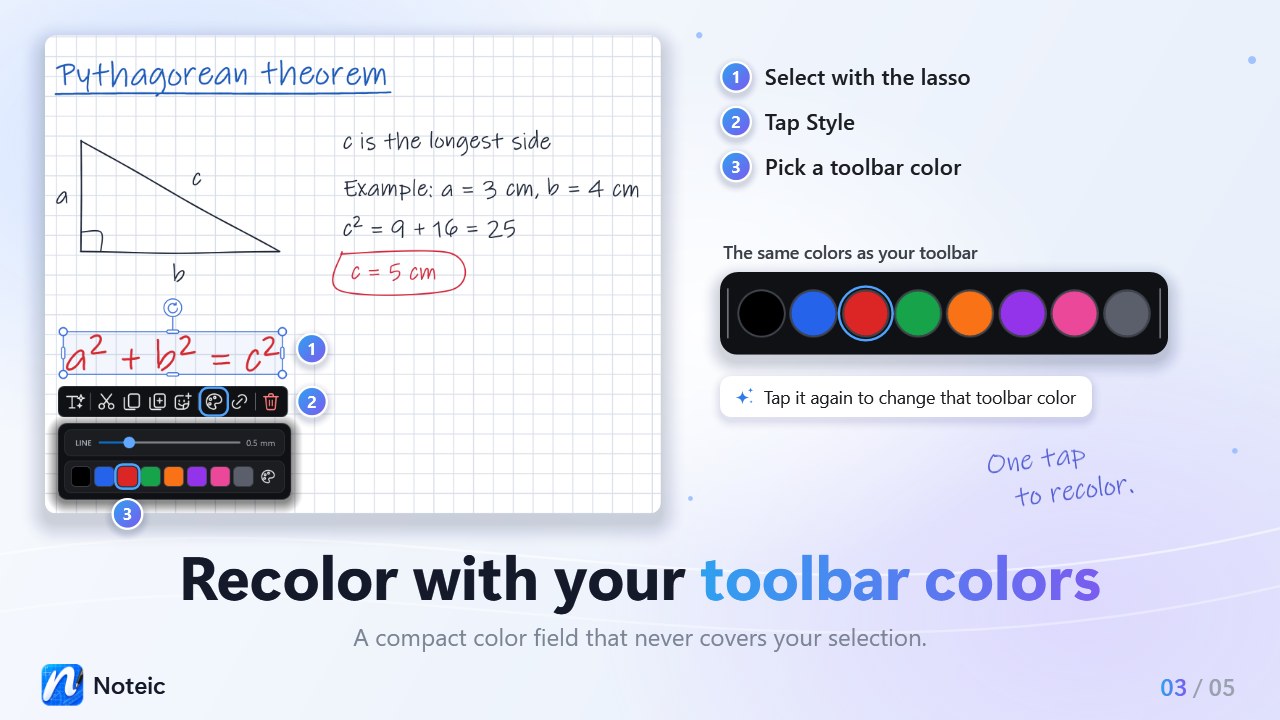
Tap Style in the selection bar. A compact field opens below the selection bar, or next to it when there is no room, and never covers your selection.
- Line: the width in millimeters, from 0.1 to 2 mm.
- Colors: the same colors as in your toolbar, in the same order, up to twelve. Tap one to recolor the selection.
- Change a toolbar color: tap the marked color again, or the palette button at the end of the row. The selection and the toolbar color change together, and Noteic keeps the new color.
- When the selection has a color that is not in your toolbar, the palette button picks a one-time color with a color field and a Hex box.
- Shapes also get the line style, Fill, and Outline or Fill to choose which part you color.
- Number lines also get Spacing: − and + set how far the ticks are apart, from 2 to 50 mm. See Number line.
Highlighter stays see-through when you recolor it.
Copy and paste#
- Ctrl+C, Ctrl+X and Ctrl+V work as usual. Ctrl+D duplicates.
- Paste lands under the pointer, or in the middle of the view.
- Ctrl+Shift+V, or pressing and holding the Paste button, pastes at the same position as the original. Handy for copying to another page.
- When you copy, Noteic also puts a picture of the selection on the Windows clipboard, so you can paste it into other apps.
Delete removes the selection, Esc clears it.