 Noteic
Undo and redo with your fingers New in 1.8
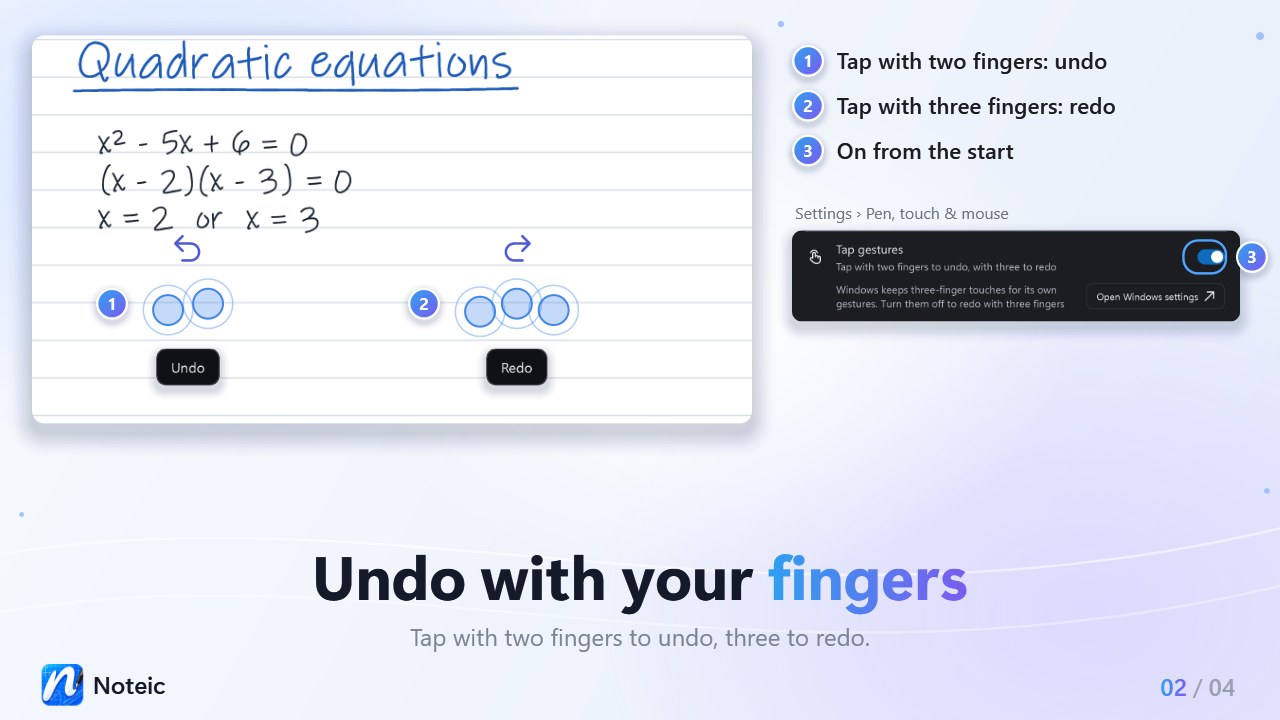
Tap the page with two fingers to undo, with three fingers to redo. Your pen can stay in your hand.
Tap to undo and redo#
- Two fingers: undo. Noteic shows Undo, or Nothing to undo.
- Three fingers: redo. Noteic shows Redo, or Nothing to redo.
Make it a short tap: put the fingers down together and lift them right away, without moving them. Fingers that move still scroll and zoom as before. Nothing happens while your pen is writing or hovering over the window.
Turn it off#
Tap gestures are on from the start. To turn them off, open … › Settings › Pen, touch & mouse and turn off Tap gestures.
Three fingers and Windows#
If Windows uses three-finger touches for its own gestures, the tap with three fingers does not reach Noteic. Tap gestures then says so: “Windows keeps three-finger touches for its own gestures. Turn them off to redo with three fingers”.
- Tap Open Windows settings next to it. Windows Settings opens at Bluetooth & devices › Touch.
- Turn off Three- and four-finger touch gestures.
The tap with two fingers works either way. With a keyboard, Ctrl+Z and Ctrl+Y undo and redo.